Want to fax a document. Do this easily using email.
Here’s how to do that.
Send a Fax
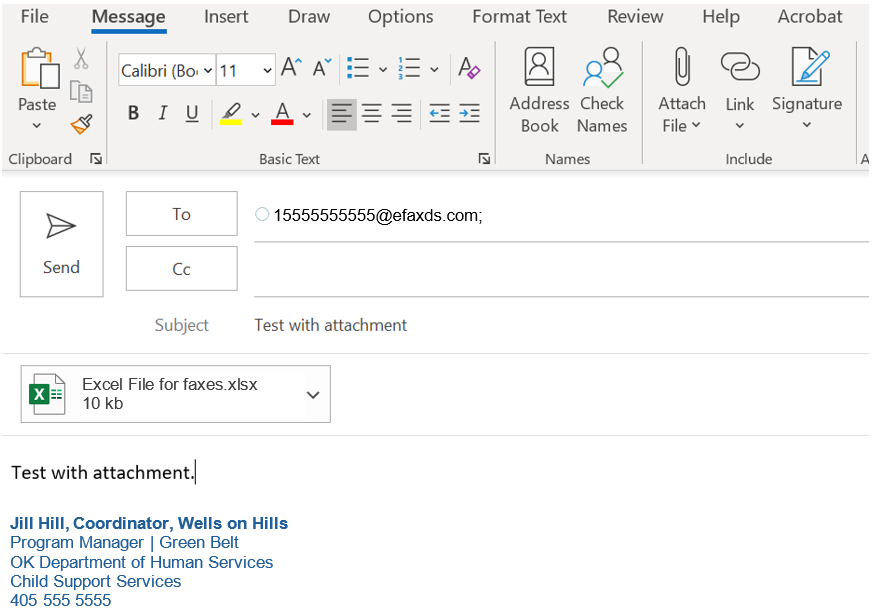
Open a new email and put the fax number in the “To” line followed by @efaxds.com. The “1” before the number is NOT optional, the @efaxds.com system will NOT automatically add it if it’s not there.
Add attachments just as you would when sending an email.
You will receive the transmittal report back in your individual email inbox as to whether the transmission was successful or failed to send.
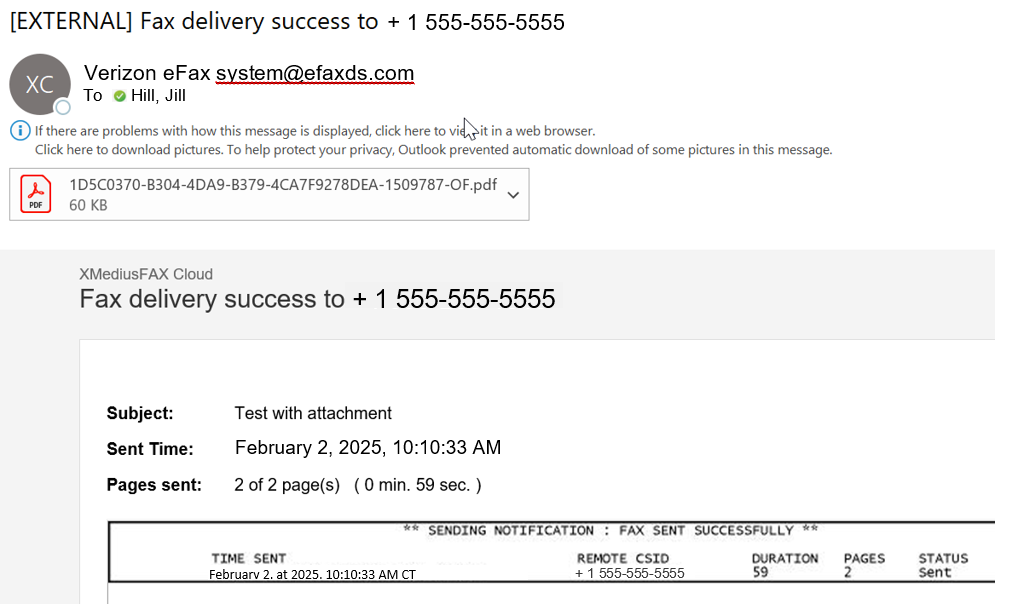
The attachment to the transmittal report is a copy of the actual outgoing fax, including the attachment.
Shared Mailboxes
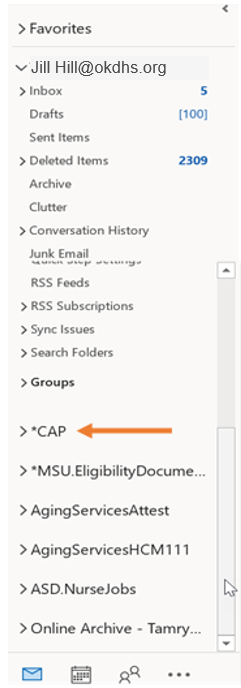
To find the shared mailbox for your specific unit, scroll to the bottom of the left-hand panel of our Outlook screen. Shared mailboxes are below your normal boxes, above “Online Archive:”
Receiving a Fax
Incoming faxes will look like an email and will be delivered to the shared mailbox.
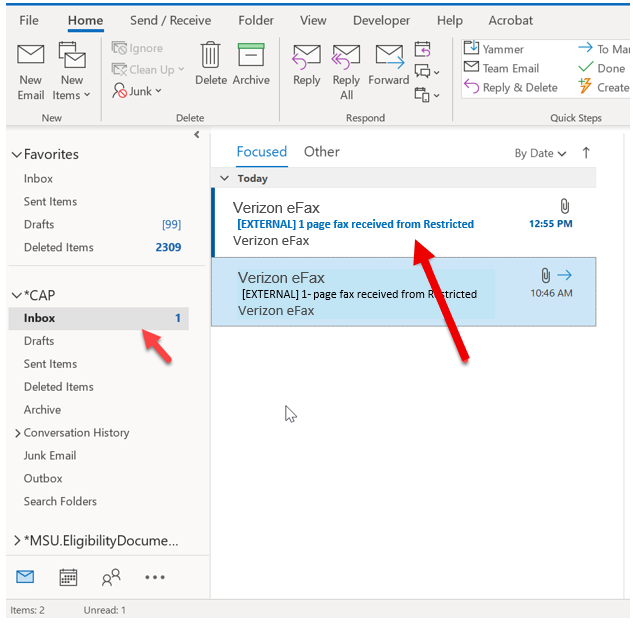
Double click on the message to read the fax.
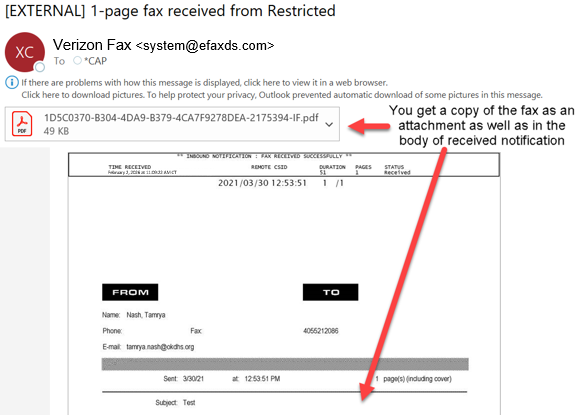
And that is all there is to it!