In order to maintain the security of federal tax information and other personal data, the “ACs” folder contains individual folders where ACs and other documents can be saved. These folders live on the State Office Workgroups drive, and this article shows you how to map your computer to this drive.
Use Windows Explorer to map to the W: drive
First, go to the file explorer icon at the bottom of the screen. Click to open it.

In the left pane click on This PC.
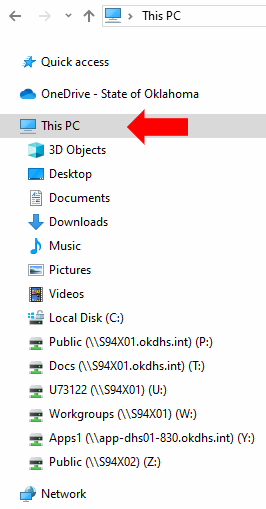
A new toolbar will appear at the top of the screen. Click on Map network drive.

The Map Network Drive box will ask you to specify the drive letter for the connection you want. Usually you can just leave that letter as is. But, if it happens there is a Z: drive in your office, then you will change that to a letter that is not being used in your office. Click on the small down arrow in the Drive: drop down menu and select a letter that has no information next to it.
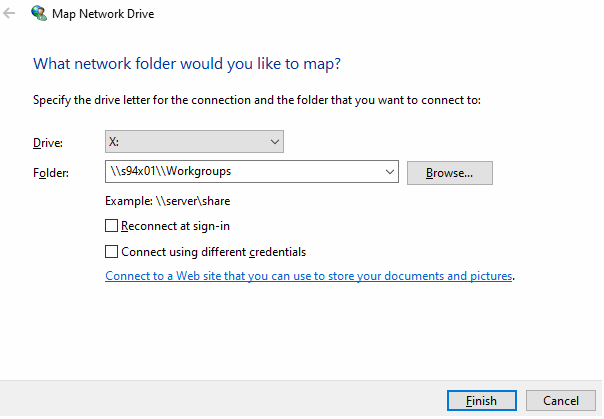
To connect to the Workgroups (W) drive at State Office, in the Folder: section of the Map Network Drive box type \\s94x01\Workgroups. Press Finish and the drive should now appear in the list of drives.
Finding the “ACs” folder
Once the State Office W: drive is installed; click on the folder “CSED”, then “shared documents, and then the folder “ACs”, where the individual folders for each work area can be found.

Finding the “IRS Offset Disputes” & “OTC Offset Disputes” folder
Once the State Office W: drive is installed; click on the folder “CSED”, then “Shared documents”, and then the folder “Shared – STO-Other documents…”, then the “CCP”… folder where the individual folders for each Tax Offset Dispute can be found.
Make these folders a “Favorite”
If you use these folders often, consider making them ‘favorites’ in your Windows Explorer. To do this, ‘right-click’ on “Favorites” at the top of the list on the left, with the star next to it. Choose the option “Add current location to Favorites”. The folder will appear in the Favorites list as a shortcut. If you chose the wrong folder as a shortcut, right-click on it, choose “Remove”, and try again.