CSS Certification assessments are done via a Zoom meeting and LMS.
- Zoom links will be sent to those enrolled prior to the assessment via an Outlook calendar invite.
- The actual assessment will be done in LMS.
The CSS Certification participant will need:
- Internet access
- Computer with a camera (you may also use your phone for a camera if unable to use the camera on your computer
- Speaker or Earphones (if using earphones, they may be used only to get set up in the Zoom meeting and will need to be removed prior to starting the assessment)
Getting Started:
- Make sure that you are set up in a physical location that offers minimal distractions
- Ensure that you are logged into LMS and the Zoom meeting a little early to work out any technical difficulties, so you are ready to start once the assessments are opened
- Once everyone is in the Zoom meeting and it is time to begin the assessment the proctor will open the assessments in LMS (you will not be able to access the assessment until the proctor opens it)
- Assessment schedules must be strictly adhered to (if you are more than 5 minutes late joining the meeting you will not be allowed to take the assessment)
- Make sure your name is correct in the Zoom meeting
- Make sure your camera is adjusted correctly and refrain from adjusting it once the assessment has started
Rules During the Assessment:
- You may use a pen/pencil, note paper and a calculator (the calculator may be the one on your computer or your phone)
- No cell phones or other electronic devices are allowed except the one that you may be using for a calculator of camera
- Participants may not communicate in any manner other than the proctors during the assessment (no email, Teams chat, text, etc.)
- You may not use your notes or any type of study aid during the assessment
- You may not use CS Quest during the assessment
- Cameras must remain on during the assessment
- Everyone will be muted once the assessment starts, please stay muted
- No virtual background may be used (this includes blurring your background)
- If you need to step away for any amount of time (which is discouraged) send a private chat to the proctor to let them know what you are doing
- Assessments are only open for a specific amount of time
- You must complete the assessment in the time allotted (if you need additional time notify the proctor by private chat and they will work to accommodate you if possible)
- At the completion of the assessment send the proctor a private chat and let them know that you are done
WHAT TO EXPECT ON YOUR ASSESSMENT DAY:
Certification assessments are not available to start until the proctor opens the assessment in LMS.
Proctors will be on the Zoom meeting 30 minutes prior to the start of the assessment to help with any technical difficulties and to answer any questions.
For technical issues contact your test proctor by private chat message, email, phone, or the contact the LMS Help Desk by phone at 405-521-2580 or email at cpmhelp@ou.edu.
AVERAGE TIMES TO COMPLETE A CERTIFICATION ASSESSMENT:
Listed below are the average times to complete assessments.
| Type of Assessment | Assessment | Average Time to Complete |
|
CORE |
Case Fundamentals | 56 Minutes |
| Communications | 53 Minutes | |
| Ethics | 38 Minutes | |
| Medical | 53 Minutes | |
|
FUNCTIONAL |
Establishment | 102 Minutes |
| Enforcement | 101 Minutes | |
| Finance | 109 Minutes | |
| Intergovernmental | 90 Minutes | |
| RECERTIFICATON | Recertification | 129 Minutes |
TAKING THE ASSESSMENT:
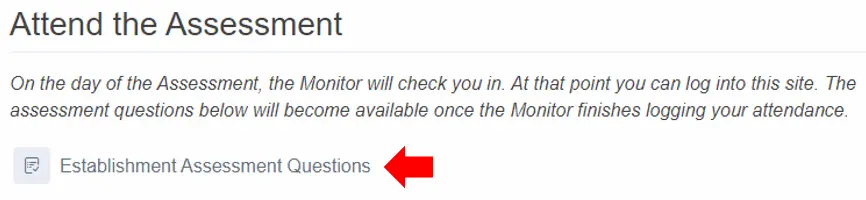
Below is an example of what you will see in LMS. If the assessment will require the use of Guidelines to there will be a link to download them. Download these prior to starting the assessment.

Next click on the link for the questions.
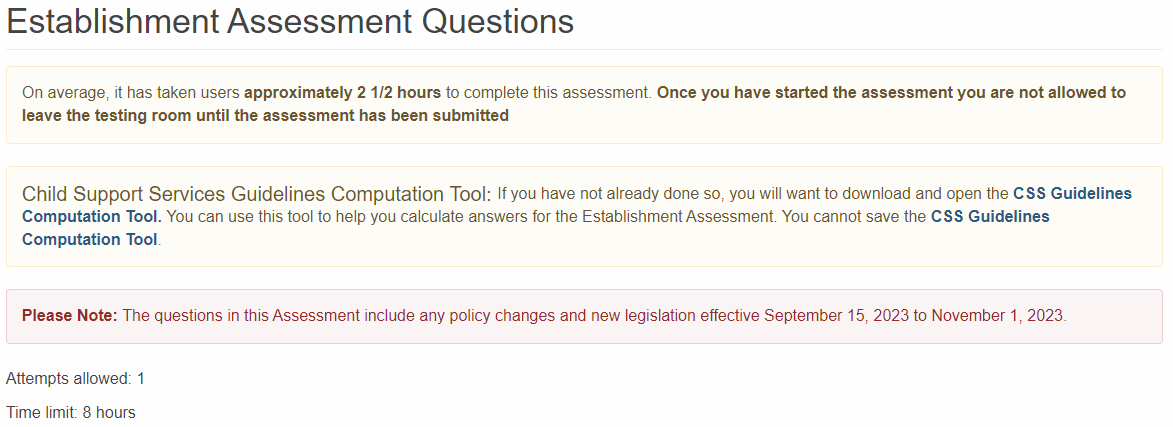
This will take you to the beginning of the assessment. It will give the approximate time it takes to complete the assessment. It will also give you another chance to download the guidelines if needed.
Click on the start attempt button to start the assessment. This will take you to the next page. On this page you will find some additional instructions. When you are ready to begin scroll to the bottom of the page and click the next page button. This will take you to the first question in the assessment.
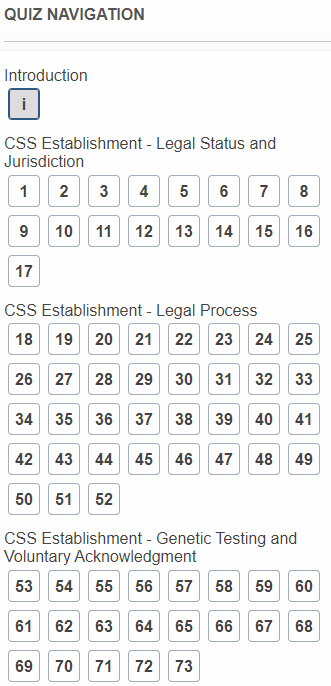
Each assessment is divided into multiple categories. You will be assigned each category in a random order. You will not receive feedback for your answers. There will be a Quiz Navigation panel on the left side of the screen. This will tell you how many questions remain; the box will darken as you answer questions.
FLAGGING QUESTIONS:
You may use the Flag Question button for two purposes — 1) personal review of question and 2) possible mistake in question.
- If you are not sure of your answer and would like to personally review the question before the final submittal of your answers to be evaluated, you can flag the question. This will allow you to use the Quiz Navigation panel to return to the question later during your assessment to review or revise your response before the final submittal of your answers. As mentioned in the Note above, you should un-flag these personal review questions once you are ready for the final submittal of your answers.
- If you believe there is a mistake in a question, you could also use the Flag Question button. The Certification Manager will be informed of any answered flagged questions by OU. These questions will be reviewed for possible revisions for future Assessments.
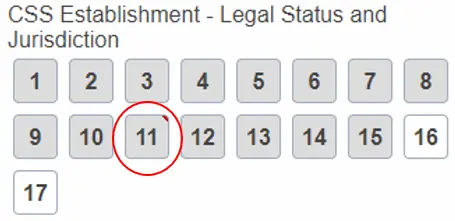
Flagged questions will have a small red dot in the upper right corner of the question.
COMPLETING THE ASSESSMENT:
Be sure to review any flagged questions before you submit your answers. If you submit your responses before answering all questions, you will be evaluated based on the questions you have completed. You will be scored incorrect for any questions you did not answer. Click the Submit all and finish button.
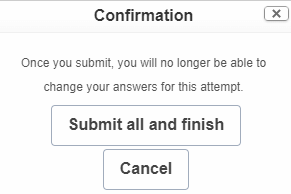
You will be notified of your Pass/Did Not Pass status at the end of the Assessment once you click the “Submit All and Finish” button.
If you receive a Pass, after you have reviewed the Pass/Did Not Pass screen, you can download your certificate.
You must notify the Proctor that you have submitted your answers by clicking on the Assessment Submitted Message for the Proctor. You will then be prompted to Click Here to notify Proctors that you are finished. An email notification will be sent, confirming your completion. This is to verify that you have submitted your answers to be evaluated and your Assessment session has been closed. Also, send a private chat message in the Zoom meeting to one of the proctors to let them know that you have completed the assessment.