Follow the below steps to view and route documents in the caseworker inbox to another caseworker, attorney or supervisor. This will display documents assigned to the caseworker that is logged in. To view other people’s inbox, see the Quest article: Viewing Other Users Items in OnBase Workflow.
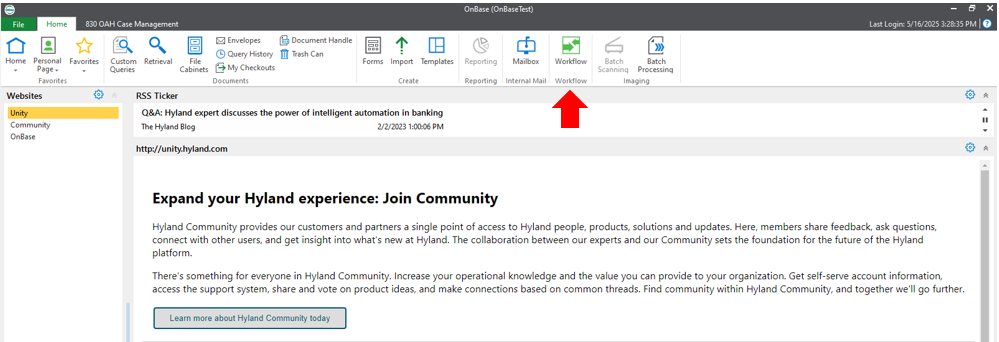
- From the Home page in OnBase click on the Workflow button.
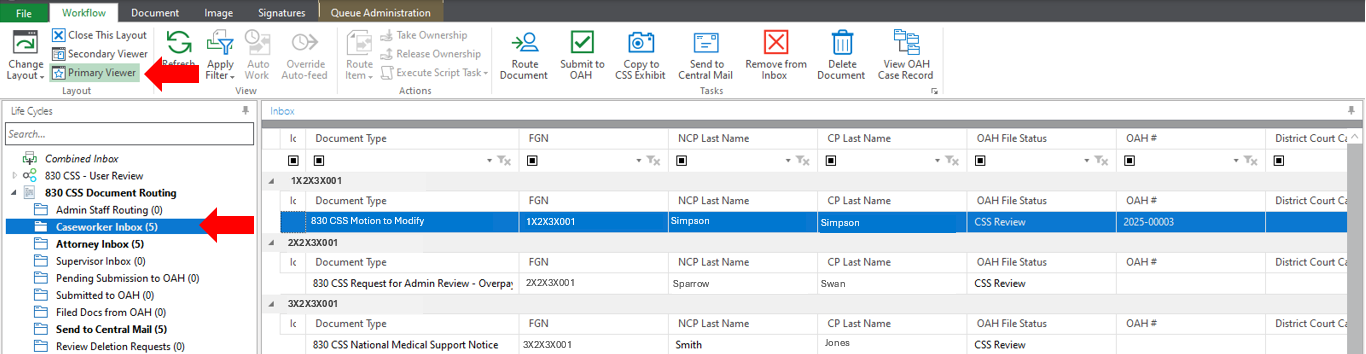
- The Workflow will open in a new window. On the left side of the screen select the Inbox that you are working with (Admin Staff, Caseworker, Attorney, or Supervisor). To see each item when it is selected make sure the Primary Viewer is turned on.
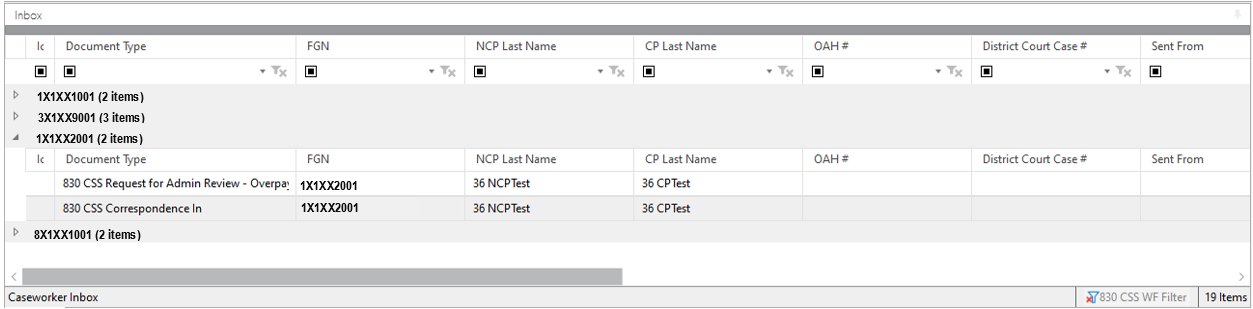
- Select the document to be routed by clicking on the document in the list.
- Click on the Route Document button on the top toolbar.

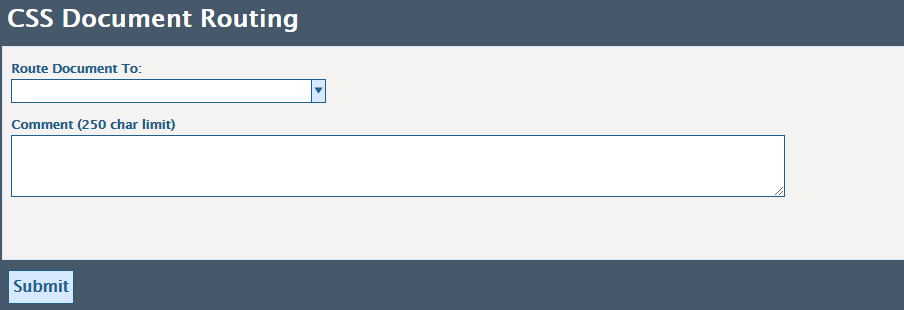
- A new screen will pop up. Use the drop-down box to select who the document is to be routed to. If any additional information is needed it can be entered in the Comment box. Then click the Submit button.
- A dialogue box will appear to show that the document routing request was executed.
