Documents may be sent to central mail directly from OnBase.
- While in OnBase Workflow click on the document that is to be sent. (Multiple documents may be selected by holding the ctrl key and clicking on the documents.)

- Click on the Send to Central Mail button on the Ribbon.
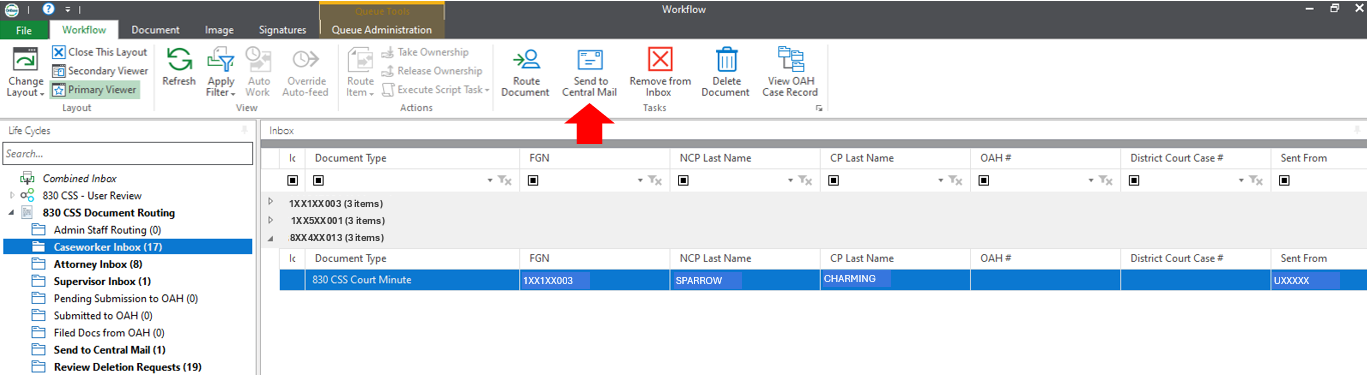
- The documents will move to Send to Central Mail Inbox.
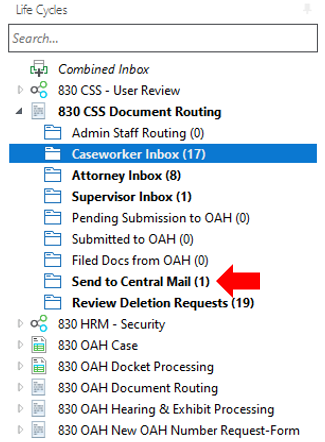
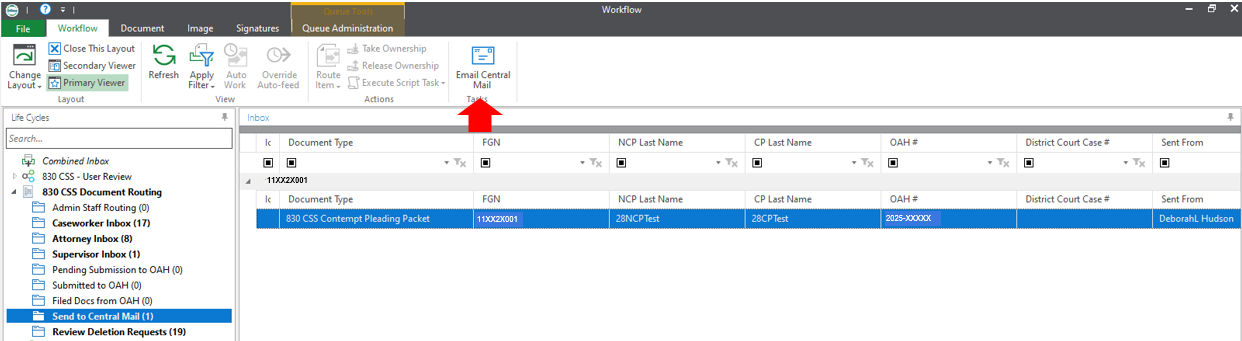
- Go to the Central Mail Inbox. Click on the document(s) you wish to send.

- Click the Email Central Mail button.
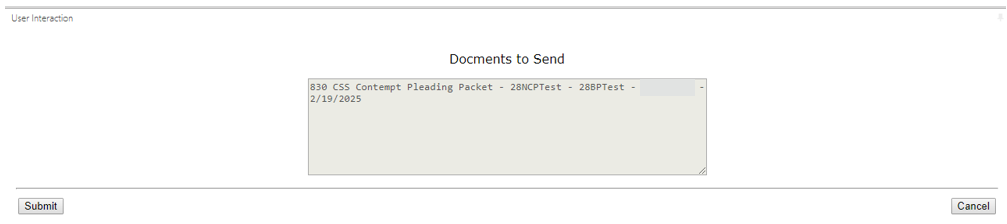
- A list of documents will populate to verify that these are the documents to be sent. Click the Submit button.
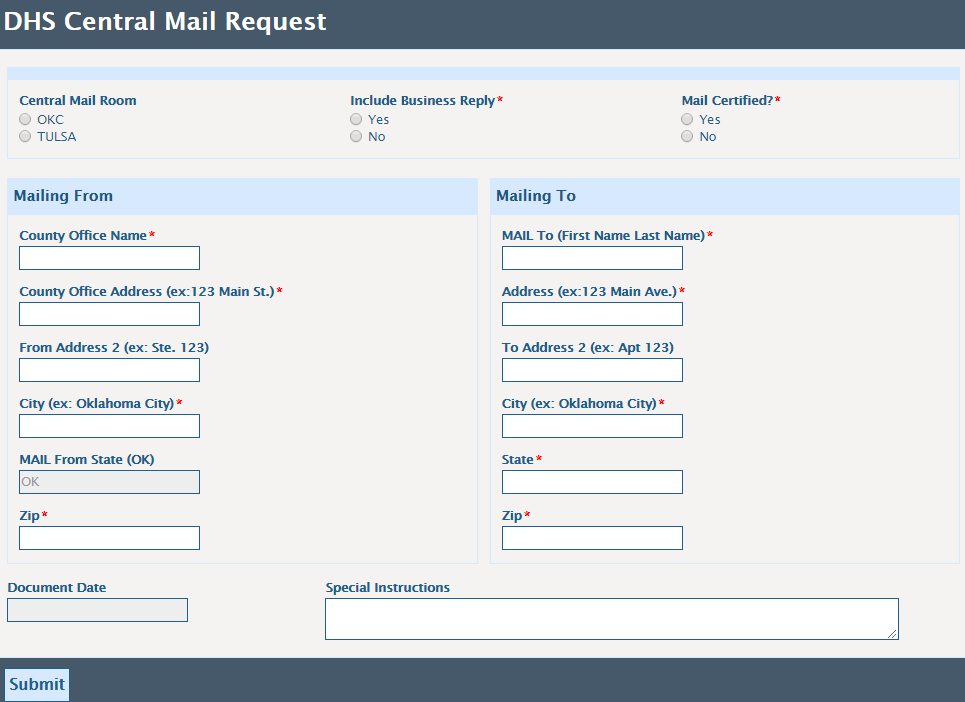
- The DHS Central Mail Request form will pop up. Complete the information on the form and click the Submit button.
- Select if you want the document returned to your inbox.
