So you joined a virtual meeting, but you can’t hear a thing? Never fear! Here is how to troubleshoot problems with your headset:

- First, ensure your headset is plugged in securely.
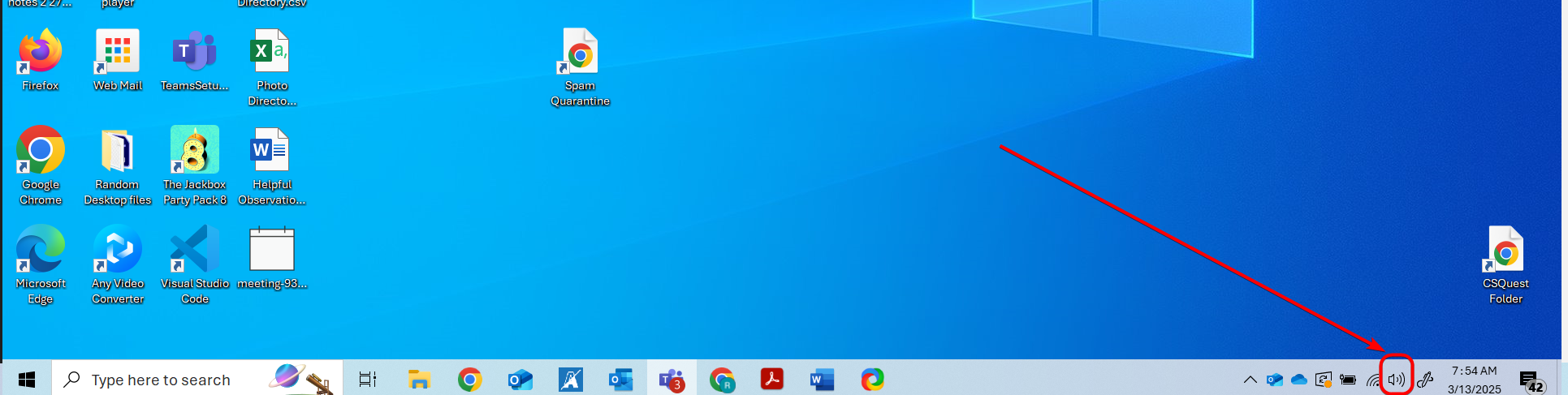
- On your Windows taskbar, on the far right, right-click the sound icon.
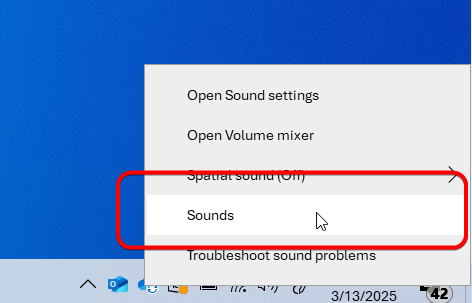
- From the window that appears, click Sounds.
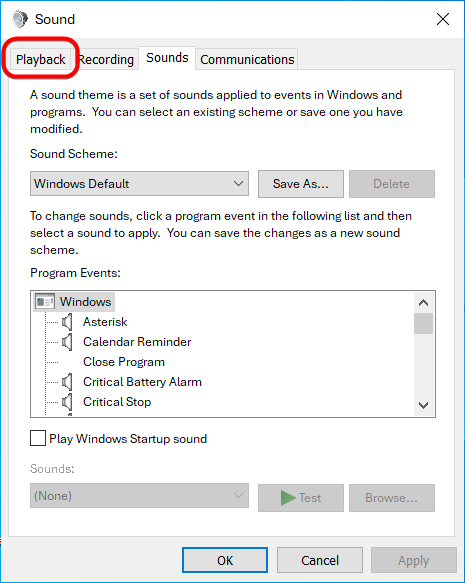
- This should open the Sound Settings. It will start on the Sounds tab. Click the Playback tab.
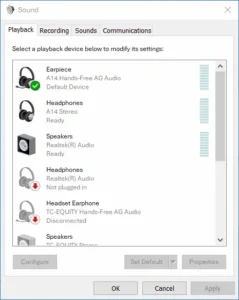
- You need to set your headset to the Default Device for your computer. The icon and label may indicate it is a speaker (ignore this). A correctly configured headset should be labeled, with the name of your device and the words “Default Device.” There should be a green ball with a checkmark on the device. If the green ball is not there, is marking something else, is marking more than one device, or the label says “Default Communication Device,” select the name of your device in the menu and click the Set Default button below.
Your computer now knows to use your headset exclusively to send sound and microphone signals to the meeting, and this setting will not change again.