This report allows managers to view any other manager’s direct reports.
- Access LMS by clicking on this link: Manager – Transcript History
- The LMS logon screen will appear. Log into LMS.
- You will be taken to the Transcript Lookup – Managers page.
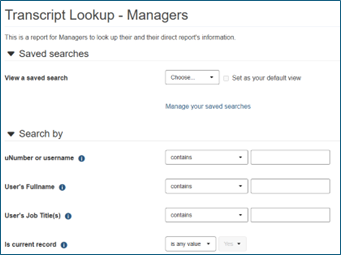
- Scroll down to the Show more…link (this will be at the bottom of the page right above and to the left of the Search and Clear buttons) and click on the link.
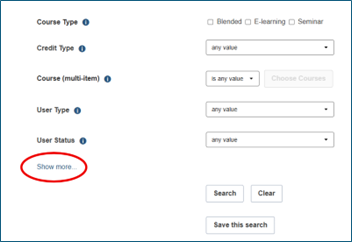
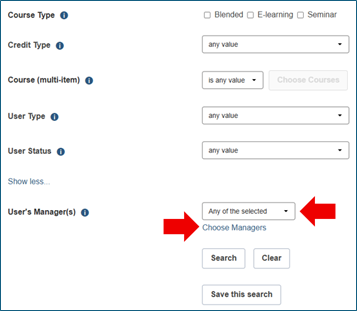
- This will add an additional search option, User’s Manager(s). First click on the down arrow and choose the Any of the selected option from the list. Then click on the Choose Managers link right below it.
- The Choose managers page will open click on the Search tab.
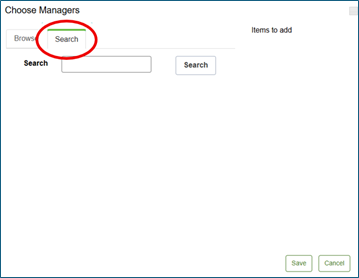
- Type the name of the manager or supervisor whose employee you want to view and click the Search button.
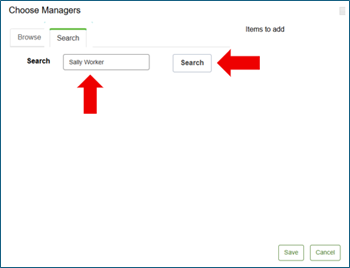
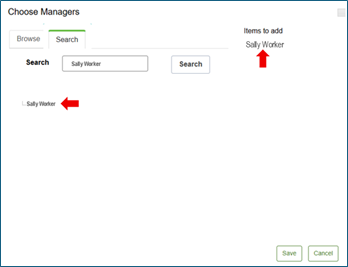
- Select the manager or supervisor’s name by clicking on the name. You may enter more than one manager or supervisor’s name by repeating this step for each person. The names will appear on the top right under Items to add.
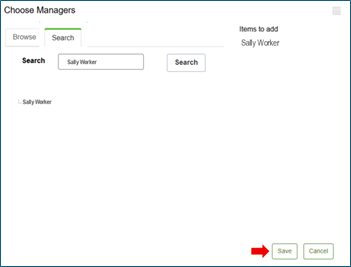
- Once you have added all the names you wish to search click on the Save button.
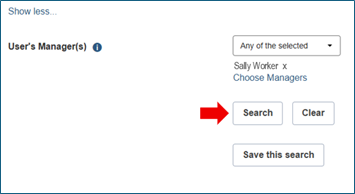
- This will return you to the previous page but now under User’s Manager(s) it will have the names listed of the managers you selected. Click on the Search button.
- The page that opens will have Transcript Lookup – Mangers at the top and will appear to be another search screen. Scroll down the page and you should see the results.
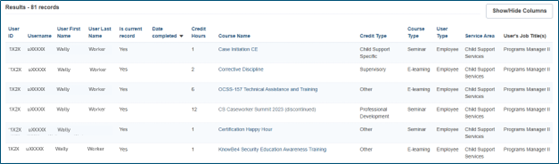
- If you would like to export the search results to an Excel document, scroll to the bottom of the page. Click the down arrow next to Export as and select Excel. Then click the Export button.
If you have any questions or need help with LMS contact the LMS help desk.