A district court docket sheet may be created and maintained within OnBase.
To create a new docket sheet:
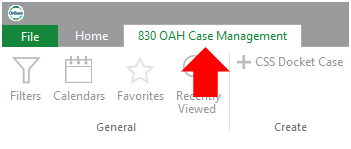
- Click on the 830 OAH Case Management tab at the top of the page.
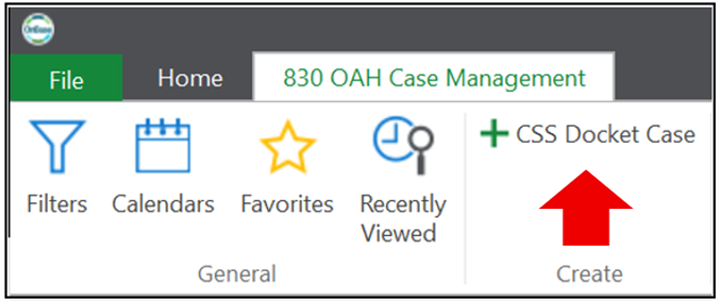
- Click on + CSS Docket Case button to open a new, blank docket sheet.
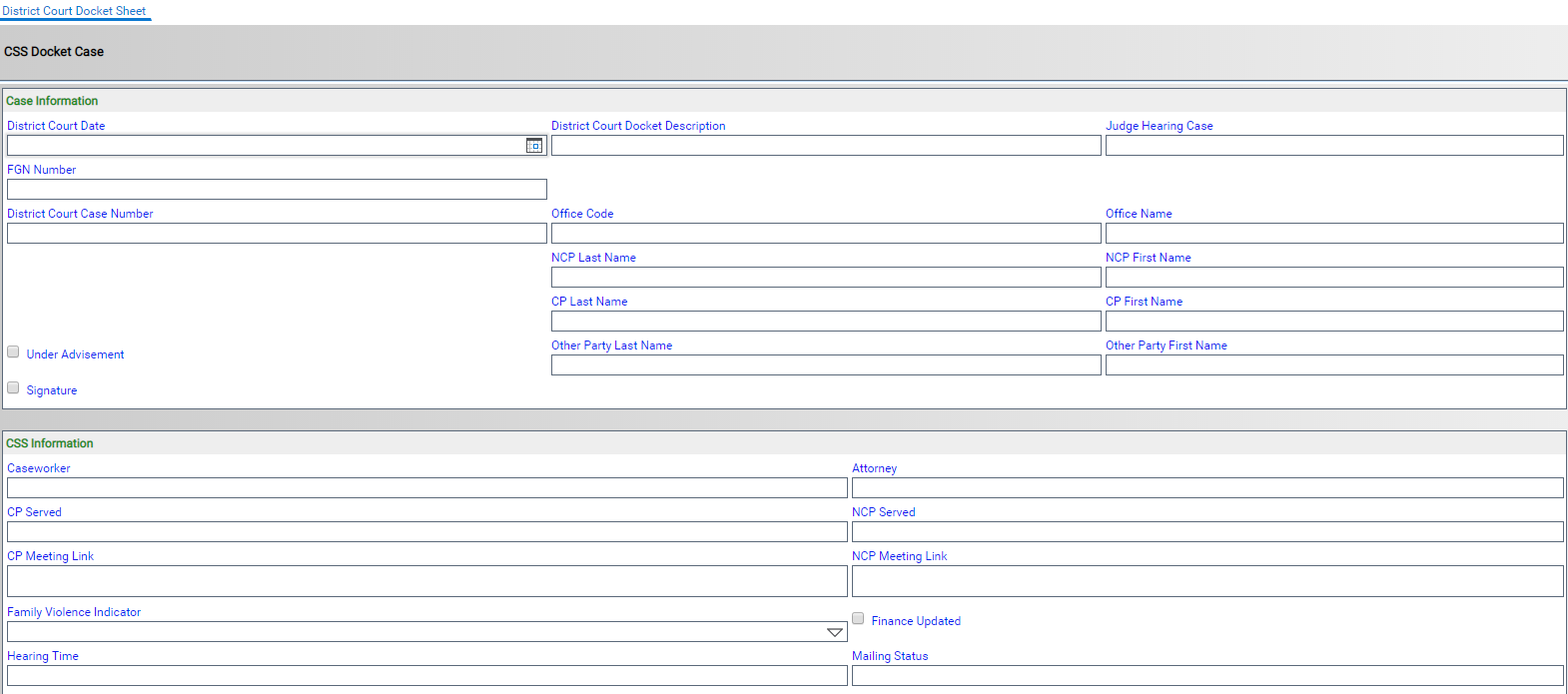
- A new window will pop up for the District Court Docket Sheet. Notice this will say District Court Docket Sheet, not CSS Docket Sheet. Complete the information you wish to include on the docket sheet. (You can access this later to add, update, and/or change information.)
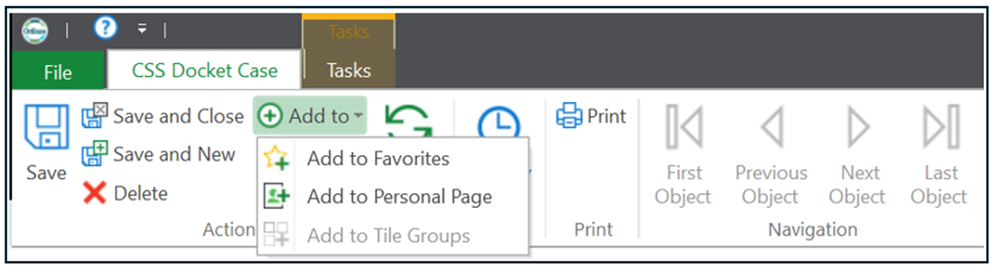
- After entering the desired information, choose one of the Save options. There is also an ‘Add To’ option to Add to Personal Page or Add to Favorites.
To access a saved District Court Docket:
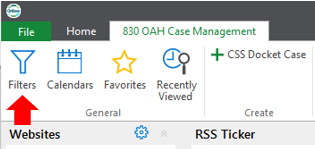
- Click on the 830 OAH Case Management tab at the top of the page.
- Click on the Filters button on the ribbon.
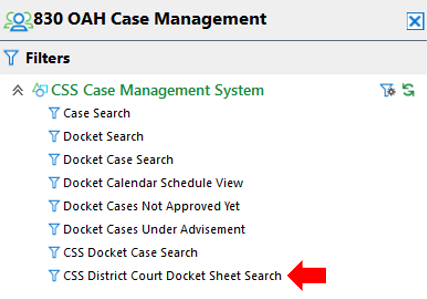
- Click on CSS District Court Docket Sheet Search.
- Enter the search parameters that you want to search by and press the Search button. Search by a specific day, search by a specific office, if you want to search for a case to see if it has been added to the docket search by FGN or use a combination of search criteria.
To copy the District Court Docket to an Excel document:
- After the search results appear, select the information you want included in the Excel document.

- Click on the Export to Excel button on the Ribbon.
