
This training will show the common OSIS screens used to obtain additional TANF information on a case.

The first thing you need to do is identify if there was TANF on the case. To do so, review the CSML screen to see if there is a C case type for anyone on the case. From CSML go to the URAD screen.
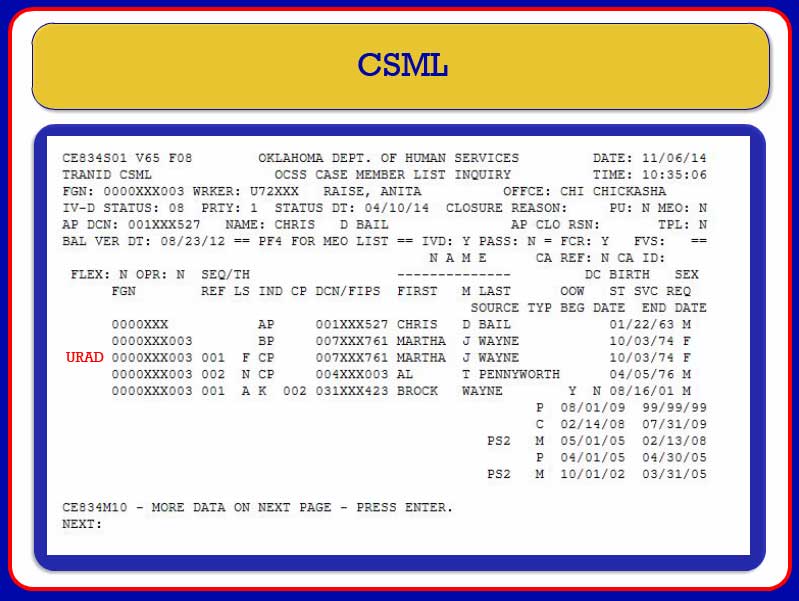
To get to the screen, type URAD next to the CPU you want reviewed for TANF.
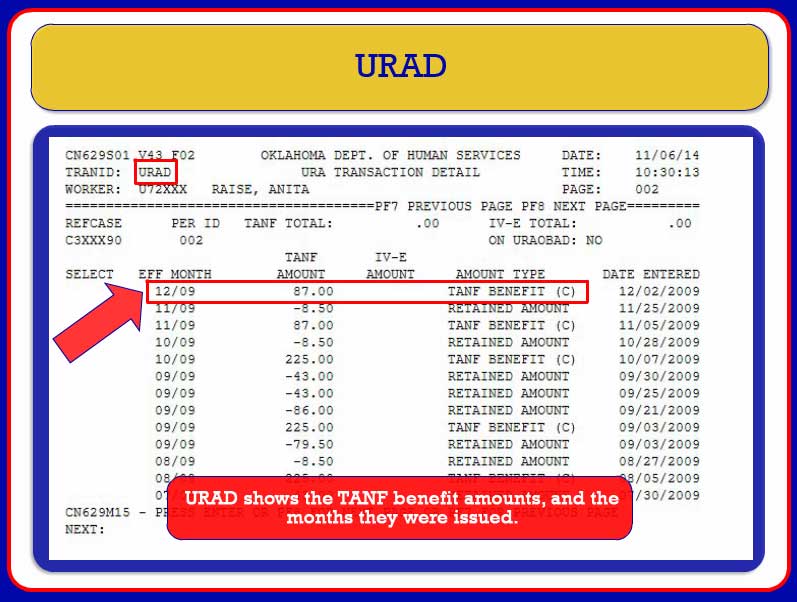
The URAD screen shows the TANF benefit amounts and the months they were issued.
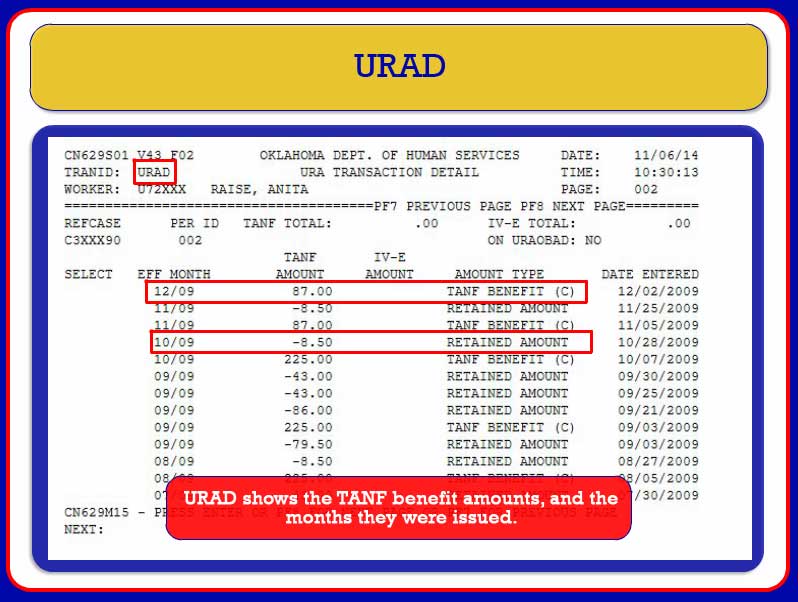
It will also show receipts retained toward the URA. To see if there is still a URA balance, check the URASI screen. To access this screen, go back to CSML.
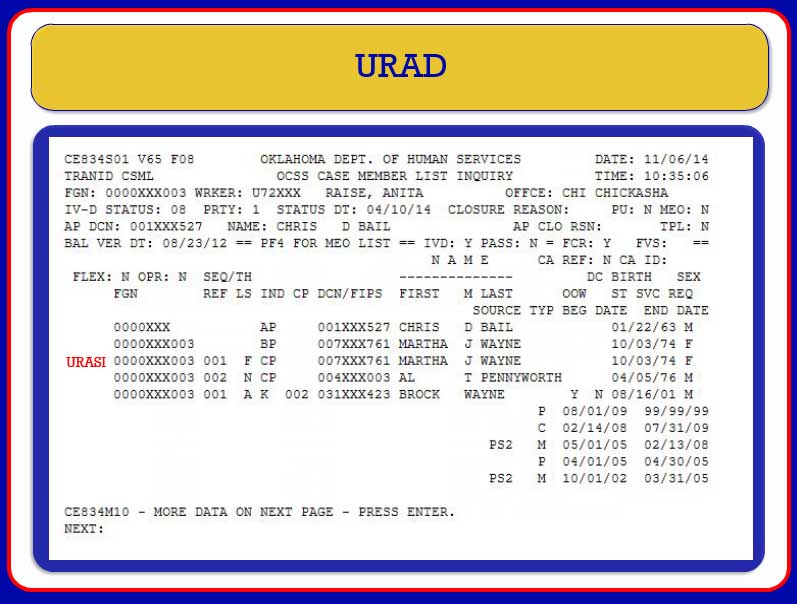
Next to the CP you are researching, type URASI and press Enter.
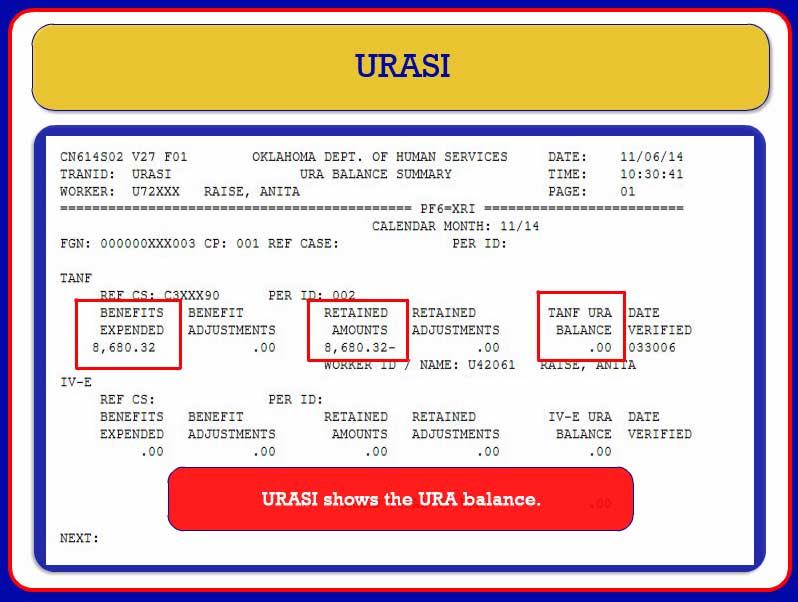
On URASI, you can see the benefits expended and the retained amounts, which tells you what the URA balance is for the case.
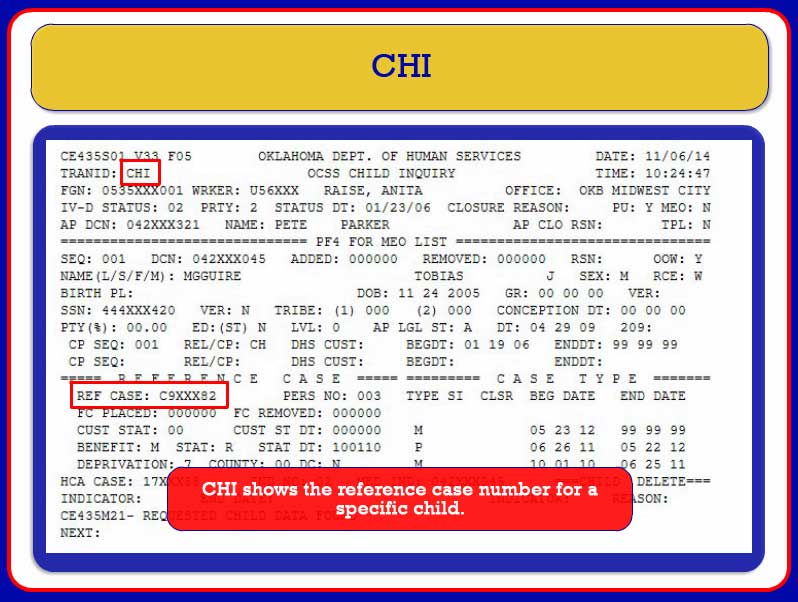
To look at the reference case number for a specific child, access the CHI screen by typing CHI next to the child you want to inquire about when on the CSML screen. Check to see if the Reference Case number includes every child on the case.
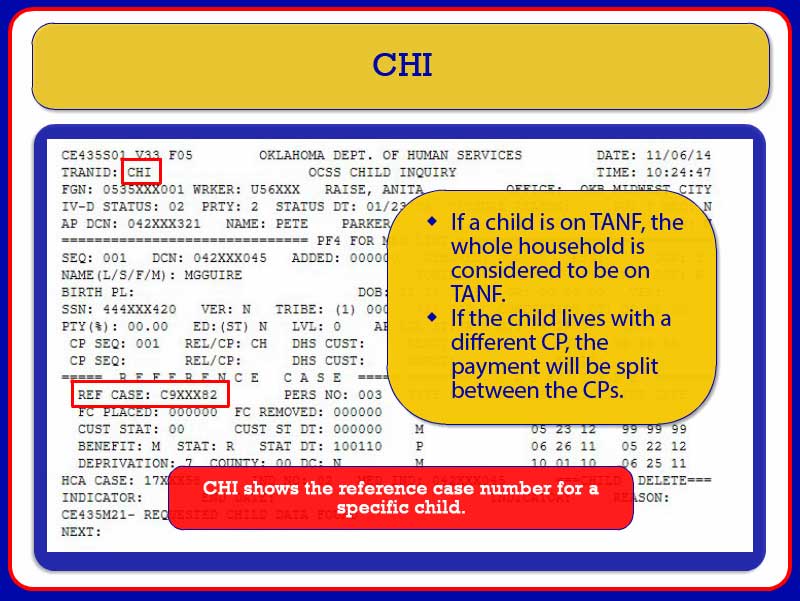
As a side note, if a child is on TANF, the whole household living with that CP is considered to be on TANF. However, if a child lives with a different CP, the payment will be split between the CPs. If the reference child number doesn’t include every child on the case or if there is not a reference case number at all, follow these steps for every child on the case.
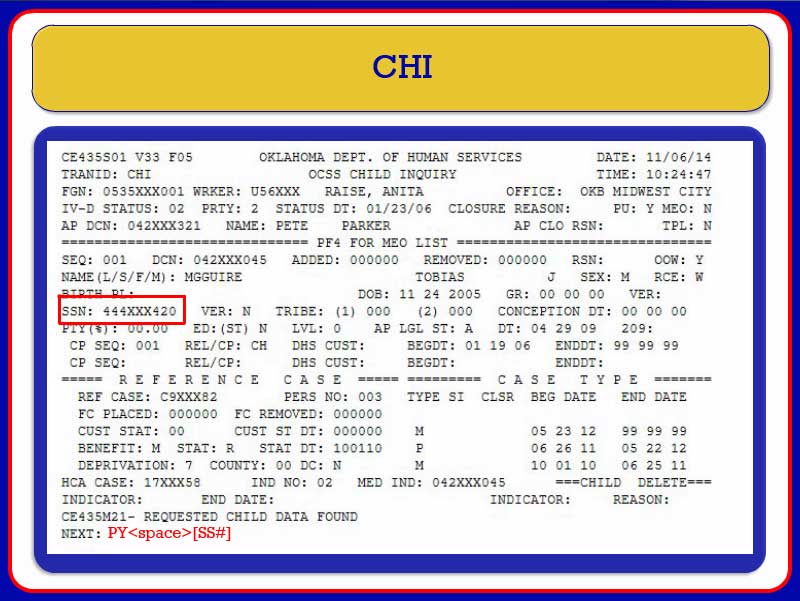
First, get the child’s social security number, check the PY screen by typing PYand the social security number in the NEXT field, then press Enter.
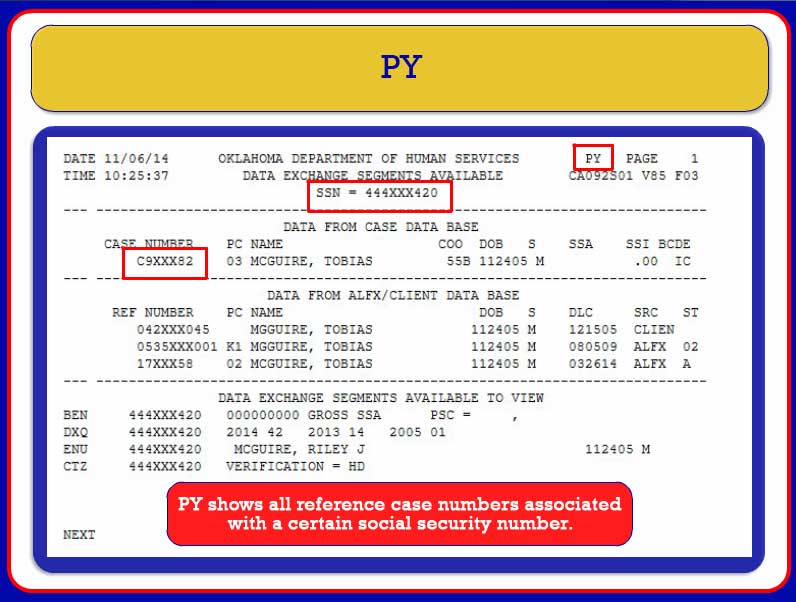
The PY screen shows all reference numbers associated with a certain social security number. Another way to view this information is to use the FSN screen.
![PY Screen – Instructions to access USN screen, USN<space>[SSN]”/><br />
</a>
</div>
<div class=](https://csquest.oucpm.org/wp-content/uploads/2018/01/TANF-12op.jpg) Access this screen by typing USN
Access this screen by typing USN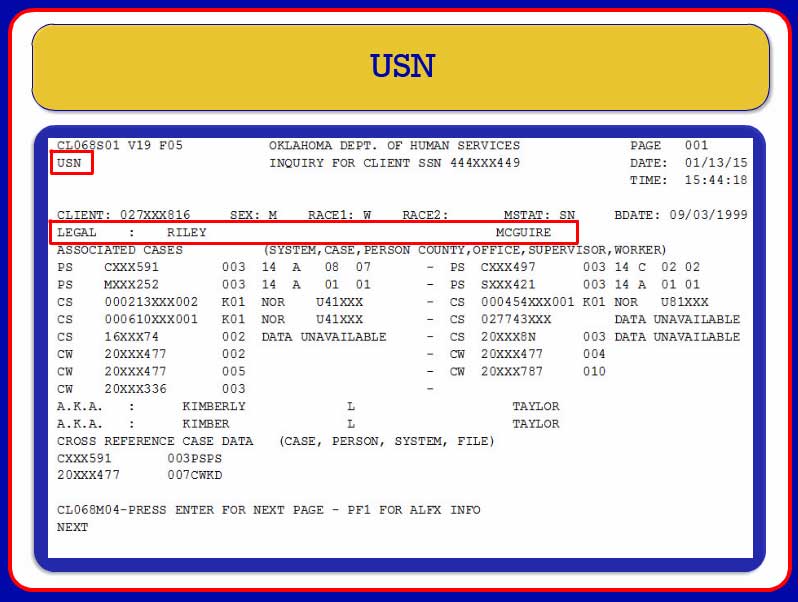
The USN screen shows the name of the person whose social security number was searched.
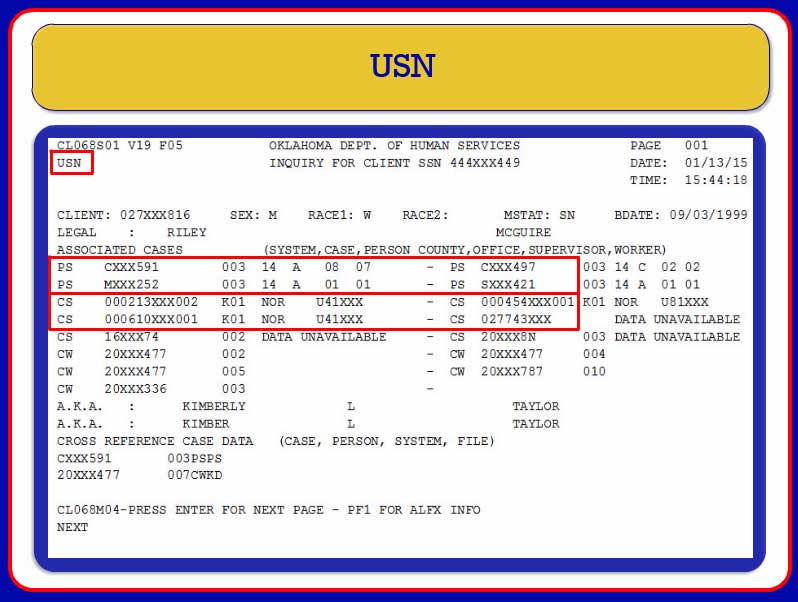
The USN screen will also show all C and H numbers and FGNs associated with that social. To see who is included in a reference case number, go to the CM screen.
![USN Screen - Instructions to access CM screen, CM<space>[C or H number]”/><br />
</a>
</div>
<div class=](https://csquest.oucpm.org/wp-content/uploads/2018/01/TANF-15op.jpg) To access the CM screen, type CM
To access the CM screen, type CM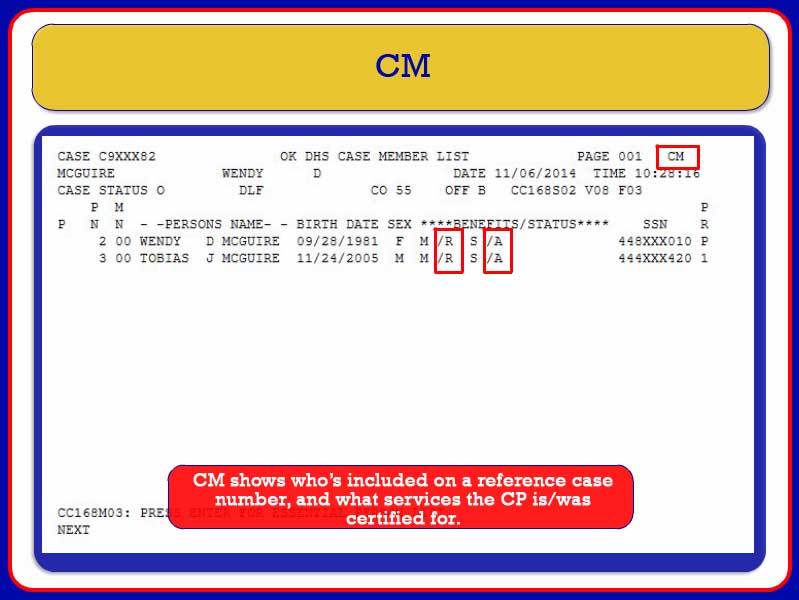
The CM screen shows who is included on a reference case number, but also what services the CP is currently certified for as well as what they have been certified for in the past. This example shows an A for active food stamps and M R, removed from medical. To see dates of when services became active, or when the child was removed from services, go to the CMM screen.
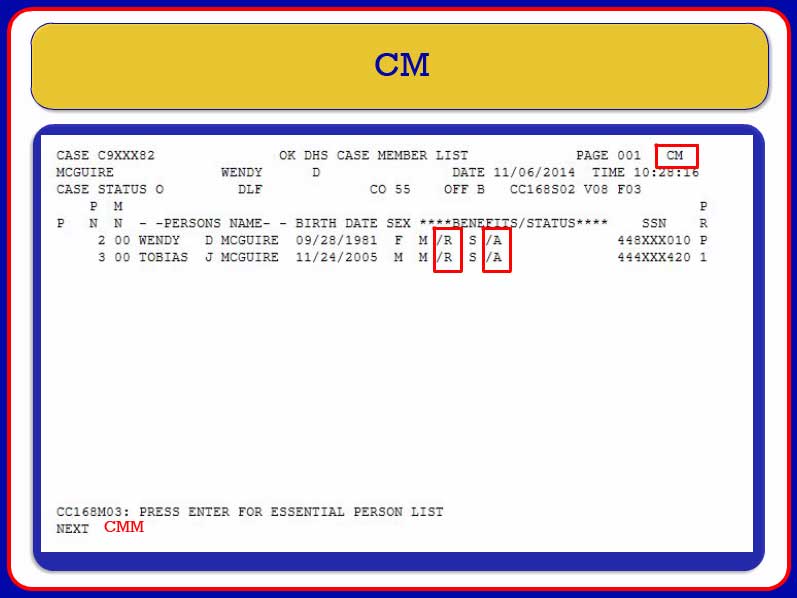
To go there, type CMM at the bottom of the screen in the NEXT field and press Enter.
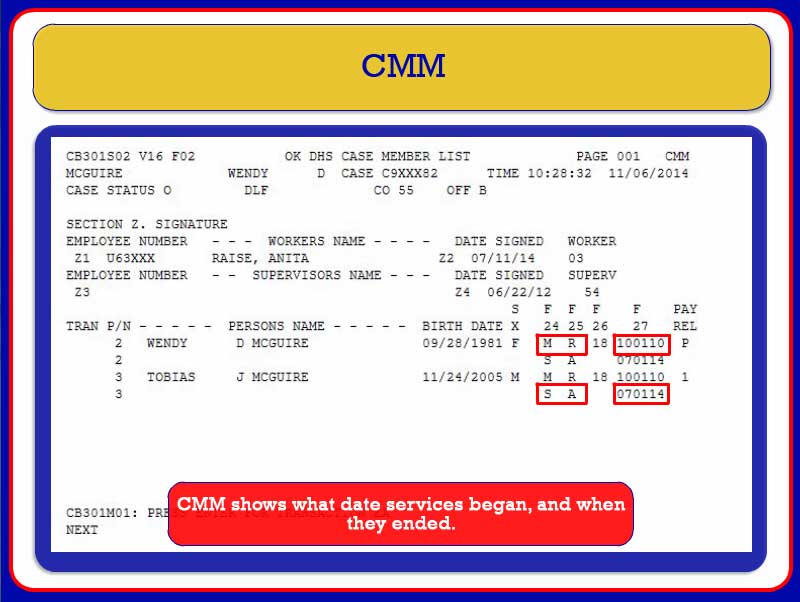
The CMM screen is used to see when services began and when they ended. This example shows R, medical removed on October 1st 2010 and food stamps activated July 1st 2014.
![CMM Screen - Instructions to access BNS screen, BNS<space>[SSN]”/><br />
</a>
</div>
<div class=](https://csquest.oucpm.org/wp-content/uploads/2018/01/TANF-19op.jpg) The next screen to check is the BNS screen. Access this screen by typing BNS
The next screen to check is the BNS screen. Access this screen by typing BNS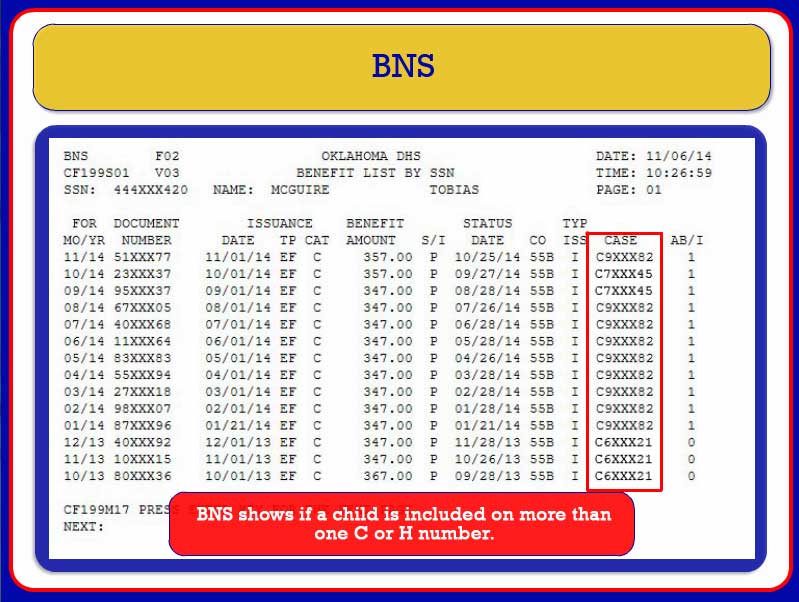
Use the BNS screen to see if a child is included on more than one C or H number. If a child is on more than one C or H number, use the CM and CMM screens to find out what services were certified on that particular C or H number.
![BN1 Screen – Arrows point to C numbers. It is accessed by typing BN1<space>and the [C or H] number.”/><br />
</a>
</div>
<div class=](https://csquest.oucpm.org/wp-content/uploads/2018/01/TANF-21op.jpg) The BN1 screen shows benefits for one C or H number at a time. It is accessed by typing BN1
The BN1 screen shows benefits for one C or H number at a time. It is accessed by typing BN1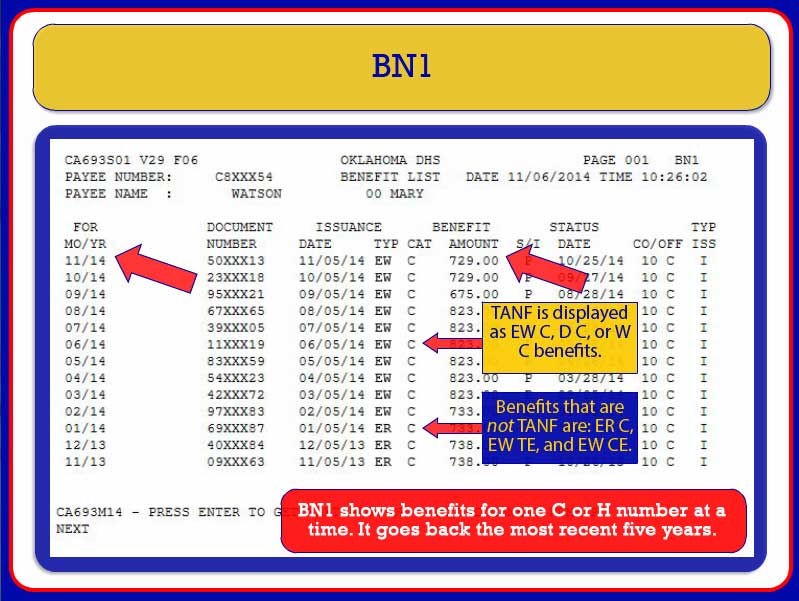
This screen will show you the month and the benefit amount. If you would like to see more detail about a specific warrant, you may use the BMP or MB3 screen.
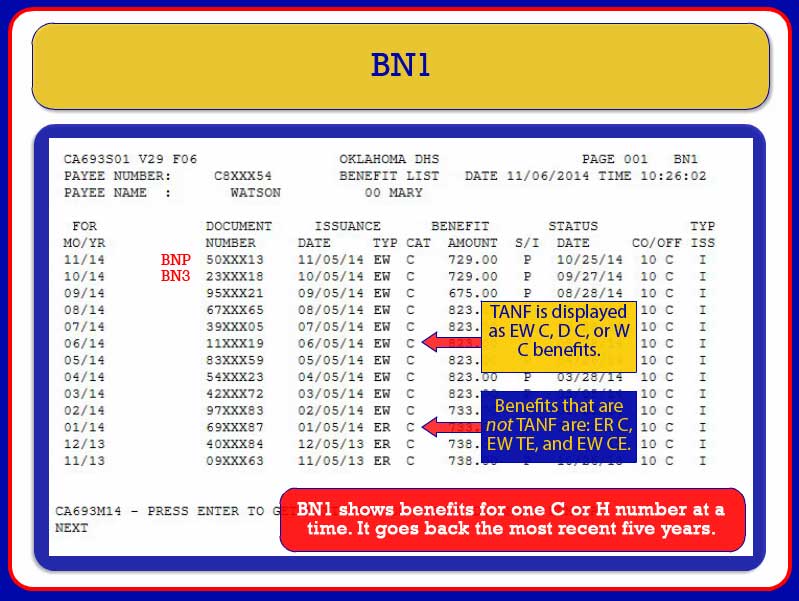
Just type BNP or BN3 next to the warrant you would like to view. The BN1 screen will go back five years.
![BN1 - Instructions to access BNO screen, BNO<space>[SSN]”/><br />
</a>
</div>
<div class=](https://csquest.oucpm.org/wp-content/uploads/2018/01/TANF-24op.jpg) To see five years beyond that, go to the BNO screen by typing BNO
To see five years beyond that, go to the BNO screen by typing BNO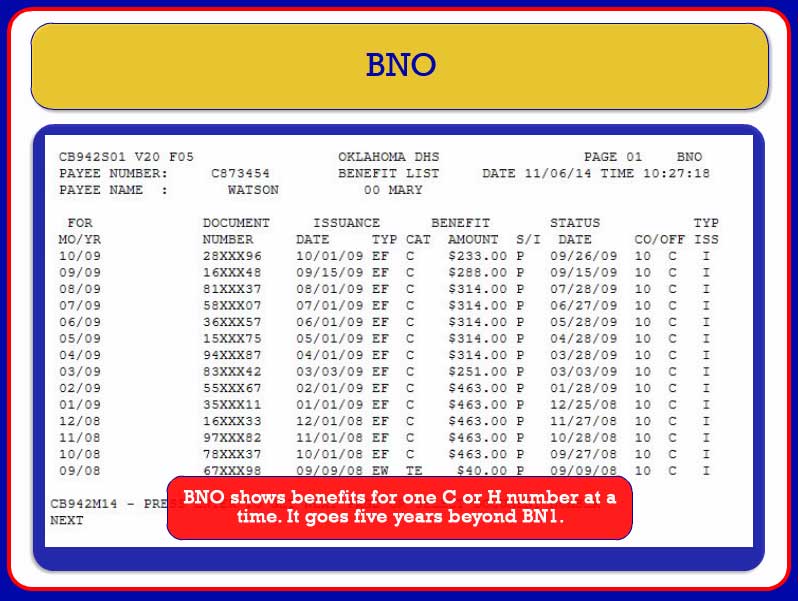
The BNO screen looks almost identical to BN1 screen. The only difference is the BNO screen goes further than the BN1.
If you have any questions about TANF research, you can ask your supervisor or contact the finance PFRs. Thank you.