Completing documents in Adobe LiveCycle (ALC) is easier with a few simple tips allowing you to make the process smoother, help prevent errors, and save you time.
How ALC Works
In ALC for CSS, you’ll complete the fields (selection lists, text fields, drop-down menus, etc.) on the left-hand side of the screen. As you enter information into each field, the document on the right-hand side refreshes to show your entries.
It sounds simple, but the constant refreshing can be frustrating. Here are a few tips that can help.
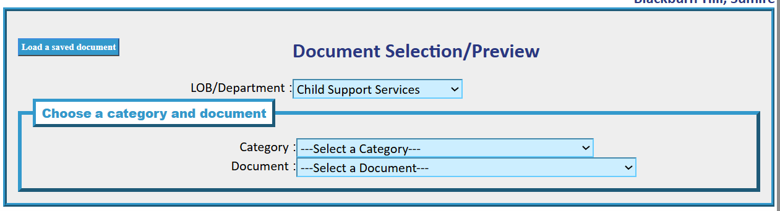
But first, complete the Document Selection/Preview page
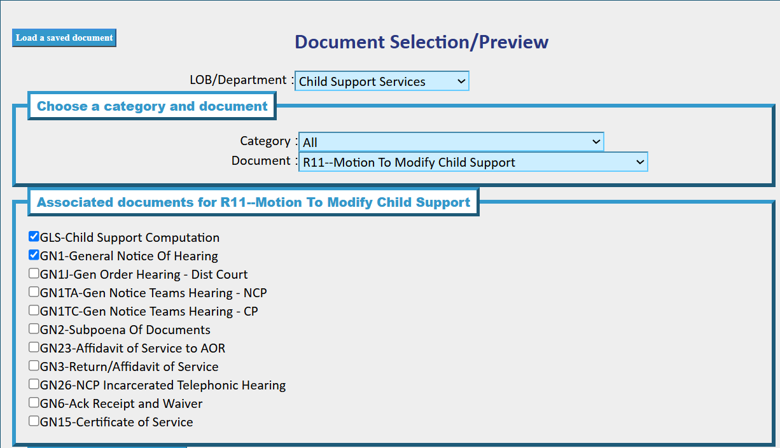
Documents in a Packet (Associated Documents)
ALC is designed to carry many of your selections from one document to another, so completing them together saves you from entering the same information multiple times. Just be sure to deselect any documents you don’t need.
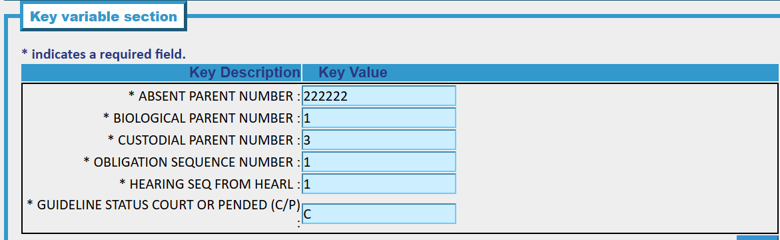
Key Variable Section
To save on clicks, leave off the leading zeros when entering key values. They are not needed. Submit and start your document on the next page.
Before you Begin a Document
Look over the document on the right.
Take a minute to look through the document before you start filling it out. Whether it’s a letter, pleading, or order, having a general idea of what you’re completing will make it easier to know what information belongs in each field. However, be aware that whole sections can be missing as it is dynamic and dependent on what is completed on the left.
Look over the field instructions on the left.
Many fields include instructions about:
- Whether the field is required
- What information to enter
- The format the information needs to be in
- Max character length
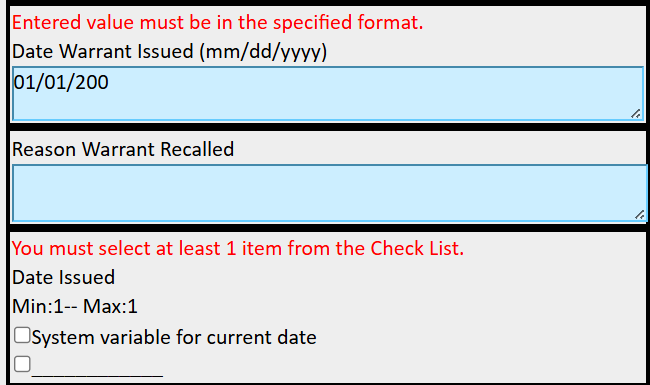
If a required field is left blank or information is entered in the wrong format, you’ll get an error message when you try to submit the document.
Here are a few examples:
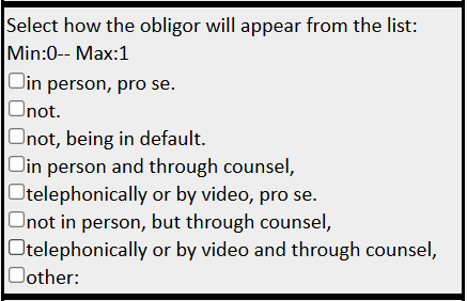
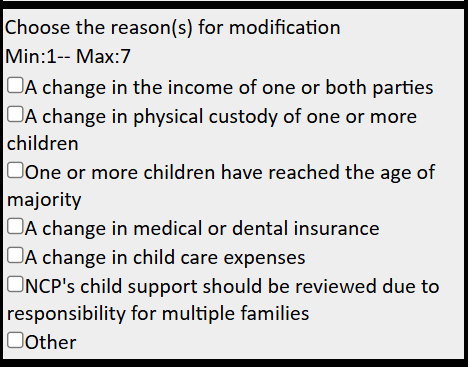
Min: 0 Max: 1 – You can choose one option, but you don’t have to make a selection
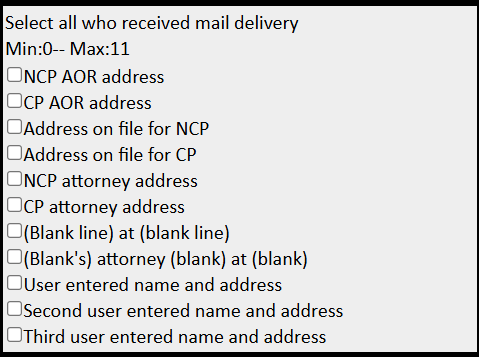
Min: 0 Max: 11 – You can choose up to eleven options, but no selection is required.
Min:1—Max:7 You must make a selection as a minimum of 1 is required.
You need to enter the email address in this format (abc@dot.com)
Do not leave a space before or after the email address as ALC will return an error for this.

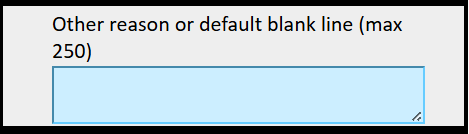
Max Character length.
Errors in red return when you submit a document with data entered incorrectly or when information is not entered on required fields.
Use your keyboard
One of the biggest frustrations with ALC is that the document refreshes back to the beginning after you complete a field. Using your keyboard instead of your mouse makes it much easier to move through the document.
- Press Tab to move to the next field.
- Press Shift + Tab to move back to the previous field.
- Use the arrow keys to make selections in lists and drop-down menus.
- Remember to press Tab twice after completing a field. The first Tab refreshes the document preview on the right. The second Tab completes the entry. Tabbing twice helps ensure your entry is fully captured.
Don’t Rush
Allow the document time to refresh. ALC requires a brief moment to process each entry. Avoid moving through fields too quickly, as doing so may result in information not being captured correctly.
Review
It’s usually easier to complete all the fillable fields first. Once the document refreshes after the final entry, then go back and review the document from the beginning to “check your work.” This simple change can make the process much less frustrating.
Save Your Work
Need to finish the document later? No problem.
Use the Save as Draft button at the bottom of the page next to Submit. You can save an unfinished document for up to 30 days, as long as the document version template hasn’t been updated.
When you’re ready to continue, click Load Saved Document to pick up where you left off.
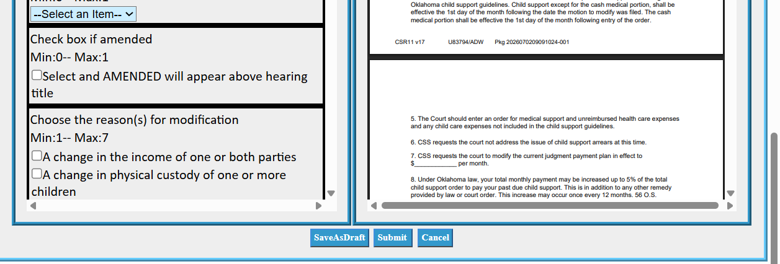
When you’re ready to continue, click Load Saved Document to pick up where you left off.
Issues
If you experience an issue with the ALC document, please email *CSS.ALCDOC.HELP