Were you ever researching a child support case then went completely blank trying to remember a seldom-used OSIS transaction? What about remembering the names of CMOD or WebFOCUS reports, or the slight distinctions between the multiple medical reports?
The OIL Transaction List (OSIS Information Look-Up) is an up-to-date listing of frequently (and not so frequently) used OSIS transactions and reports, grouped by subject area. The T-User guides are also included, so you can not only see the obscure OSIS transaction or report, but also see the definition of the transaction or report to ensure you are looking in the correct spot for information.
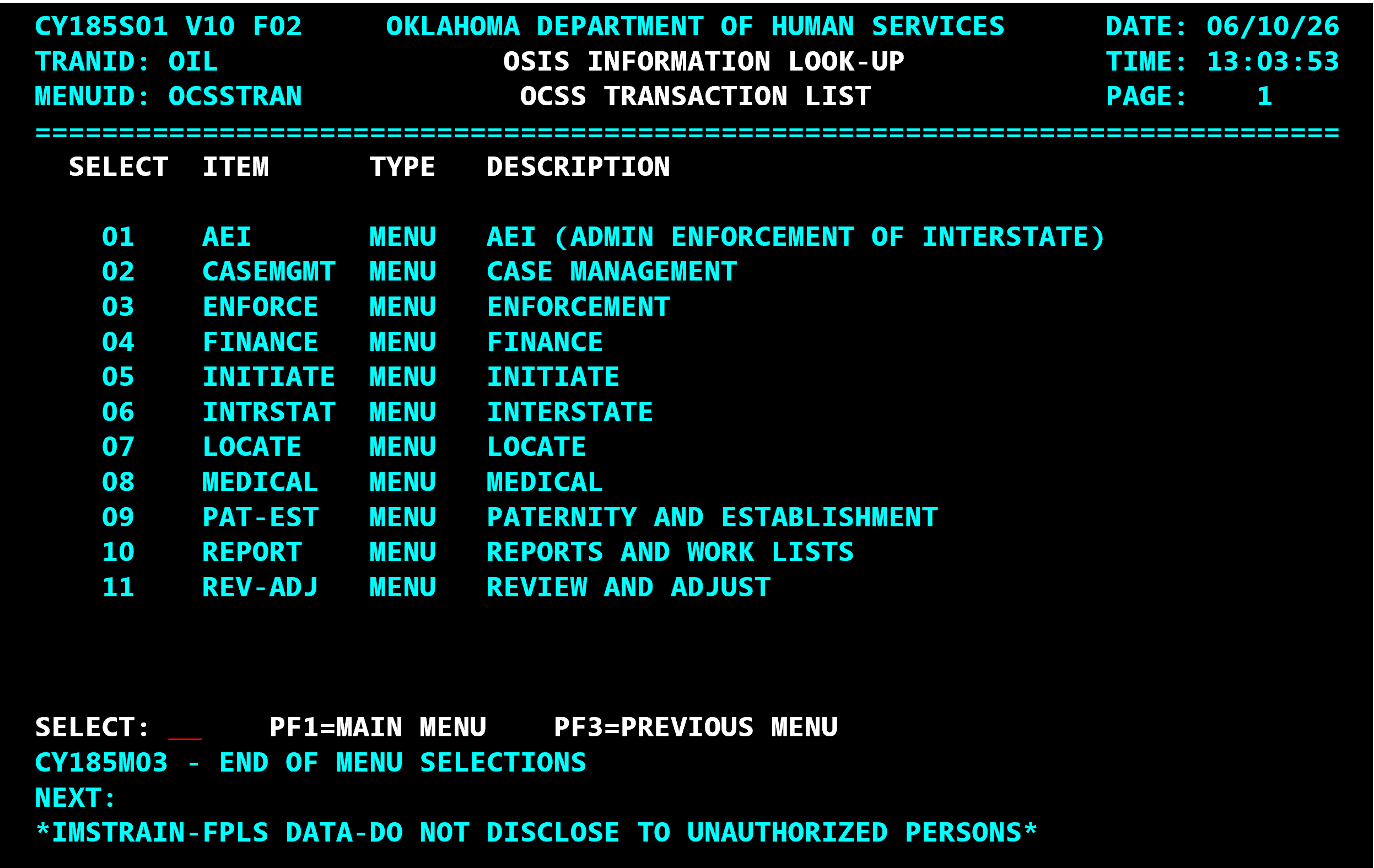
Let’s go through a couple of scenarios so you understand how to use this list screen and its sub-menus.
Screens
If you are looking for how to cross-reference a benefits case to a FGN, but can’t remember the name of the transaction used to do that, you would type OIL at NEXT:, then type 04 for Finance transaction. This sub-menu will appear:
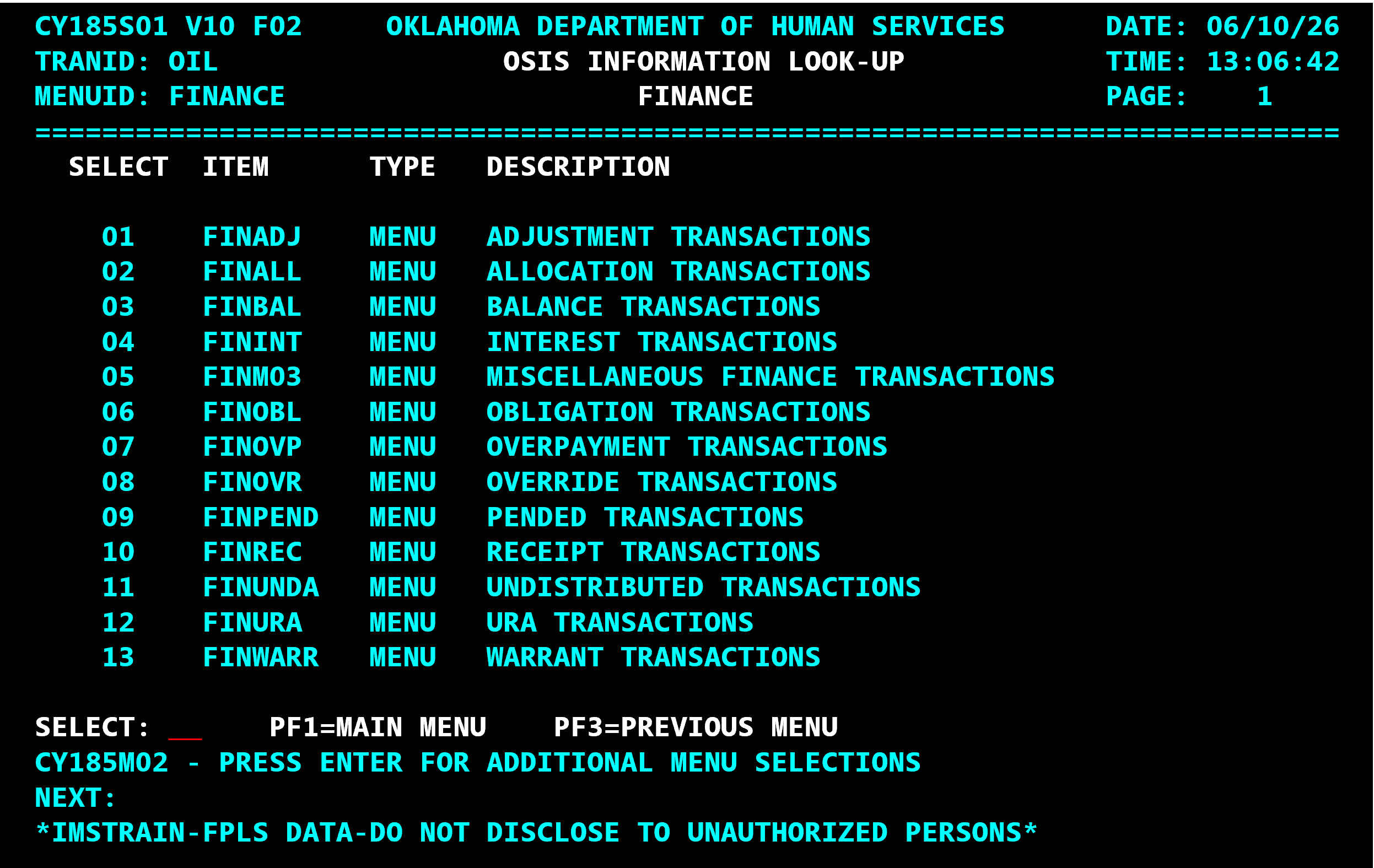
You will then enter 05 for “Miscellaneous Finance Transactions.” As you page through the lists of screens, you reach item XRA, description URA Cross Reference Update.
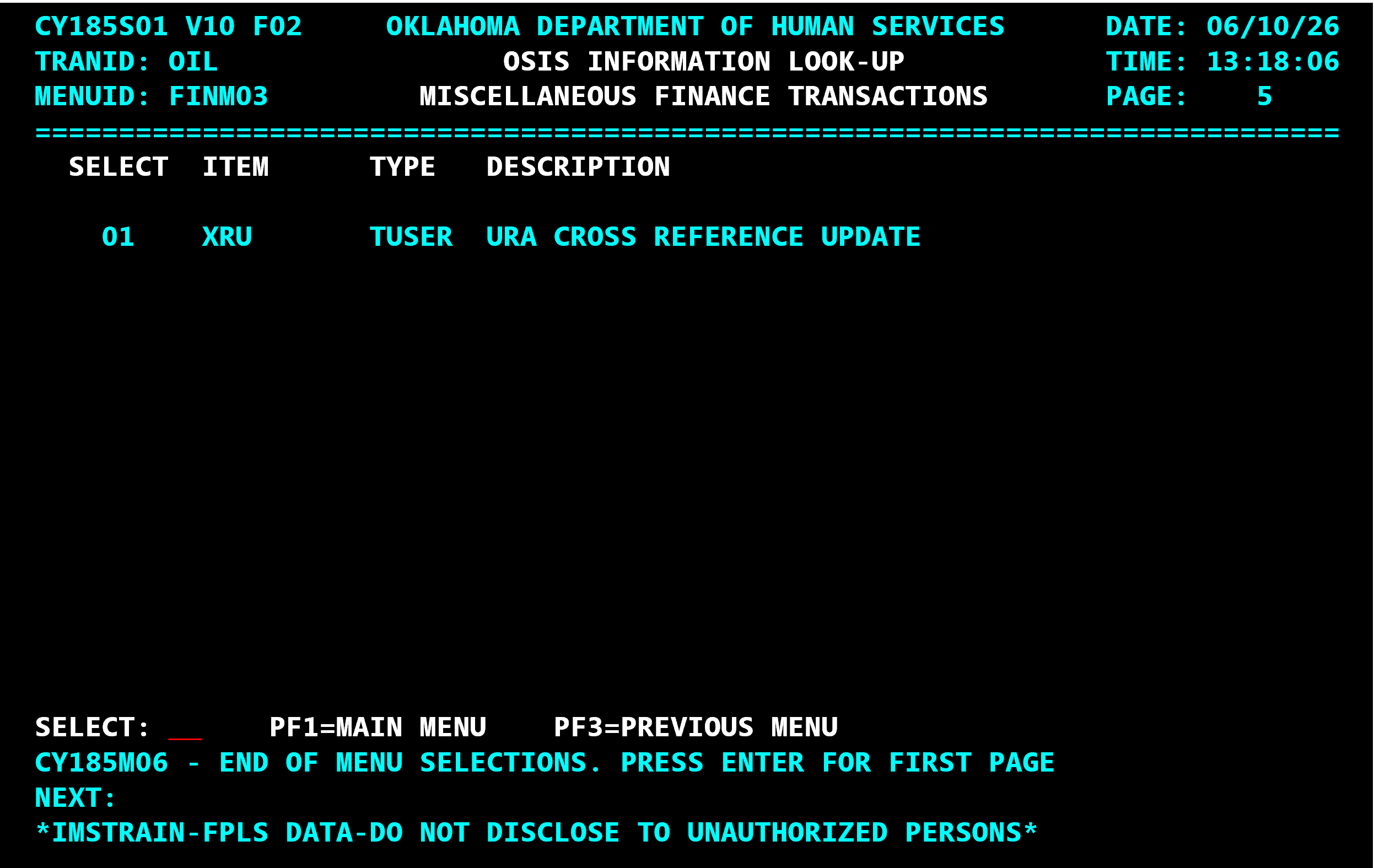
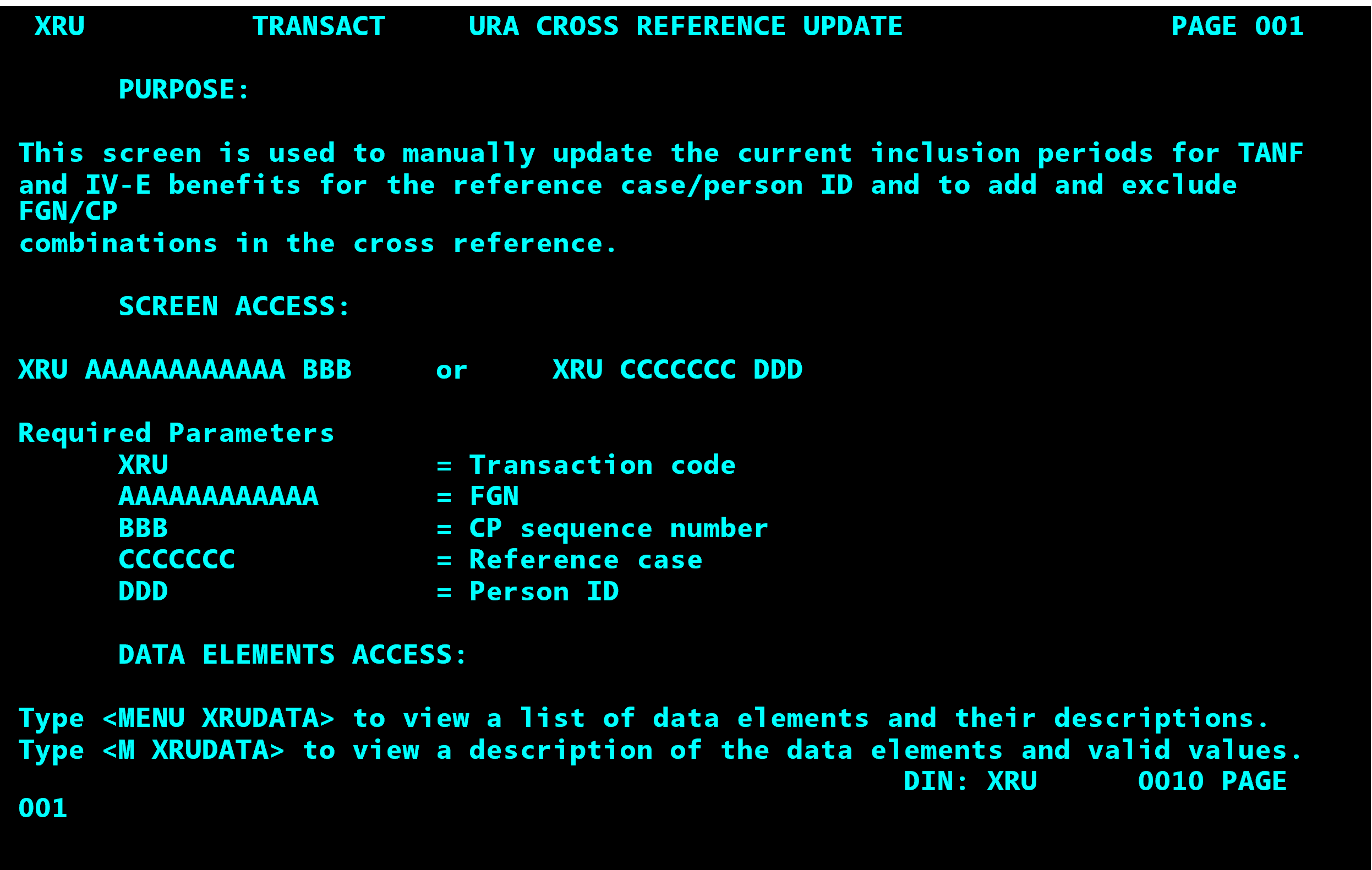
Just to be sure that this is the right screen, you want to see what T-User says about XRA. Enter 01 in the Select field at the bottom of the screen to access T-User:
Reports
This same process works for reports, both CMOD and WebFOCUS. Let’s try another scenario. You have been tasked with helping your office improve their medical performance measures, and you are looking for FGNs with obligations where medical hasn’t been ordered. Type OIL at the Next: field on any screen. Type 10 for reports at the Select: field and you get the following screen.
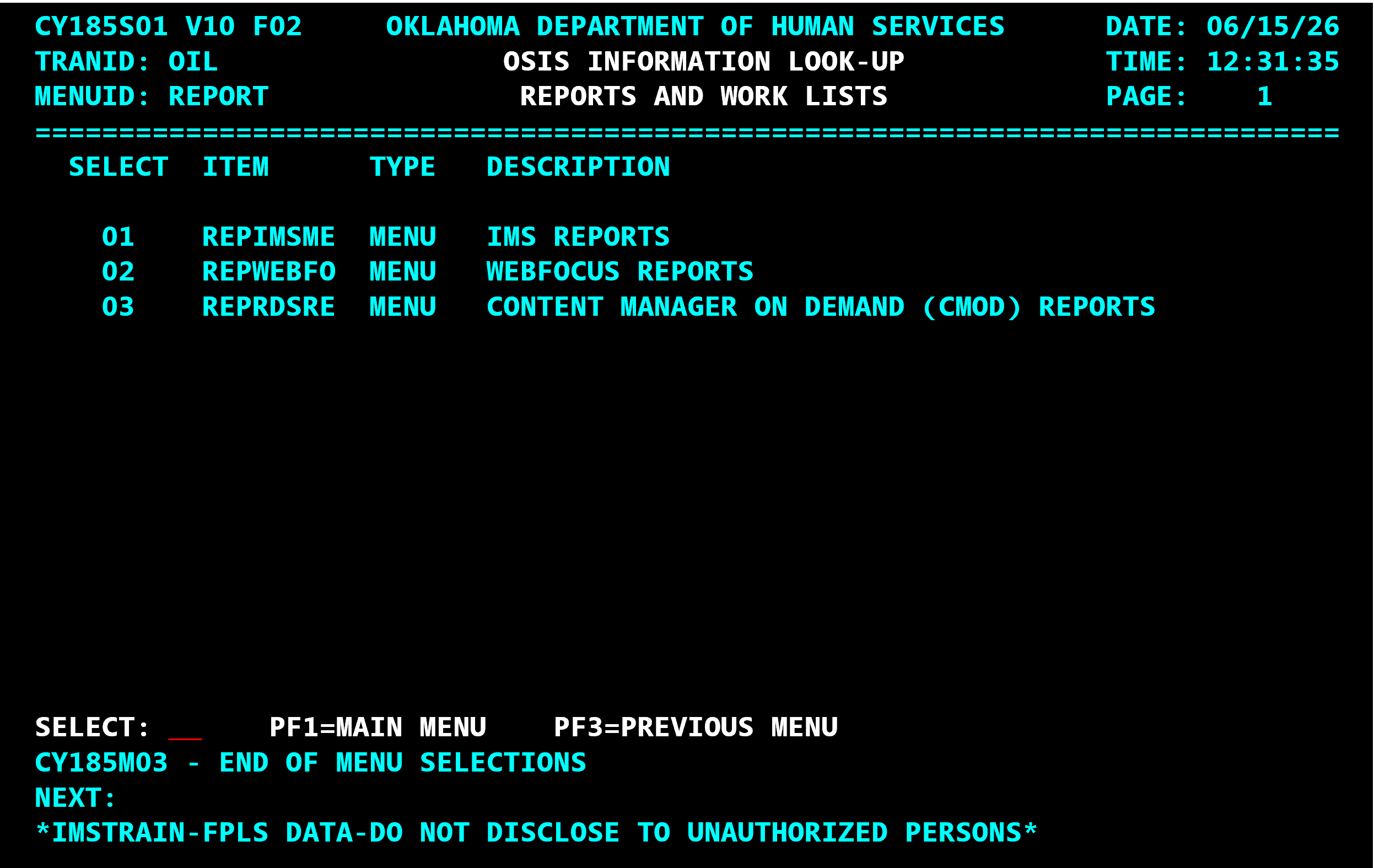
You are fairly certain that the report is in CMOD, so you enter 03 in the Select: field.
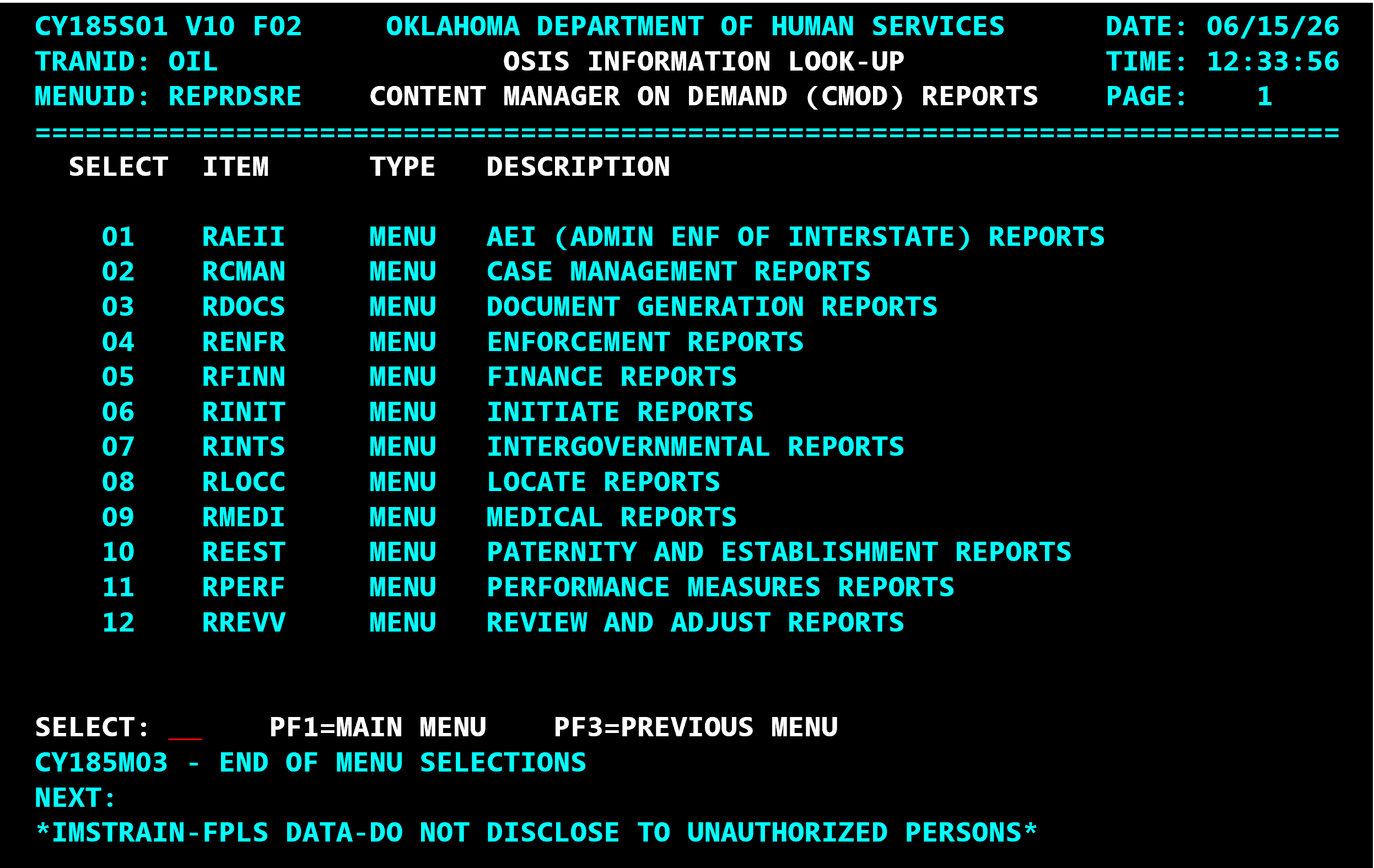
Then enter 09 in the Select field for Medical Reports in CMOD.
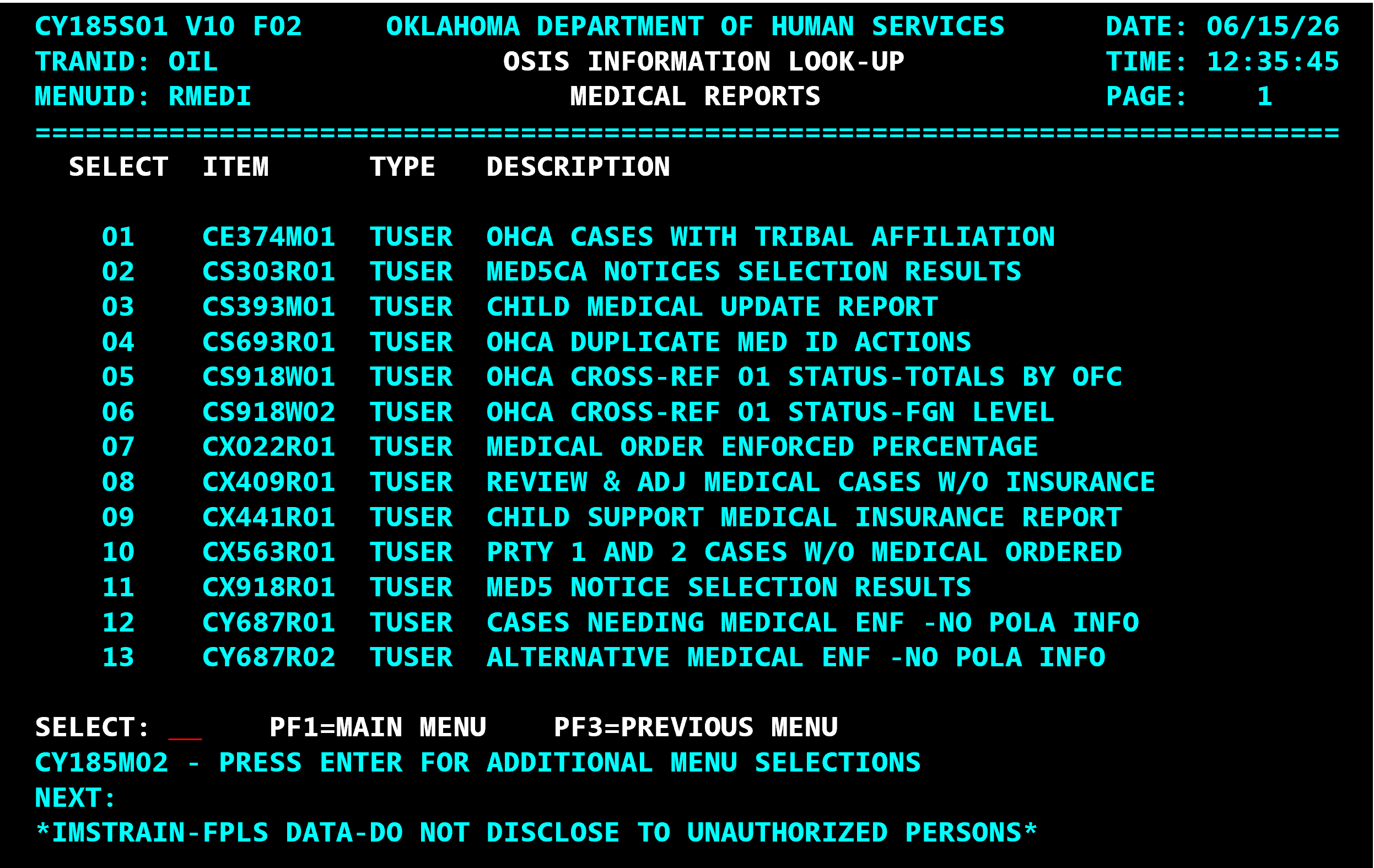
You found the report you needed – Child Support Medical Insurance Report.
However, you might also want to check out report 08 – Review and Adjust Medical Cases without Medical Insurance so enter 08 in the Select field to access the T-User for this report:
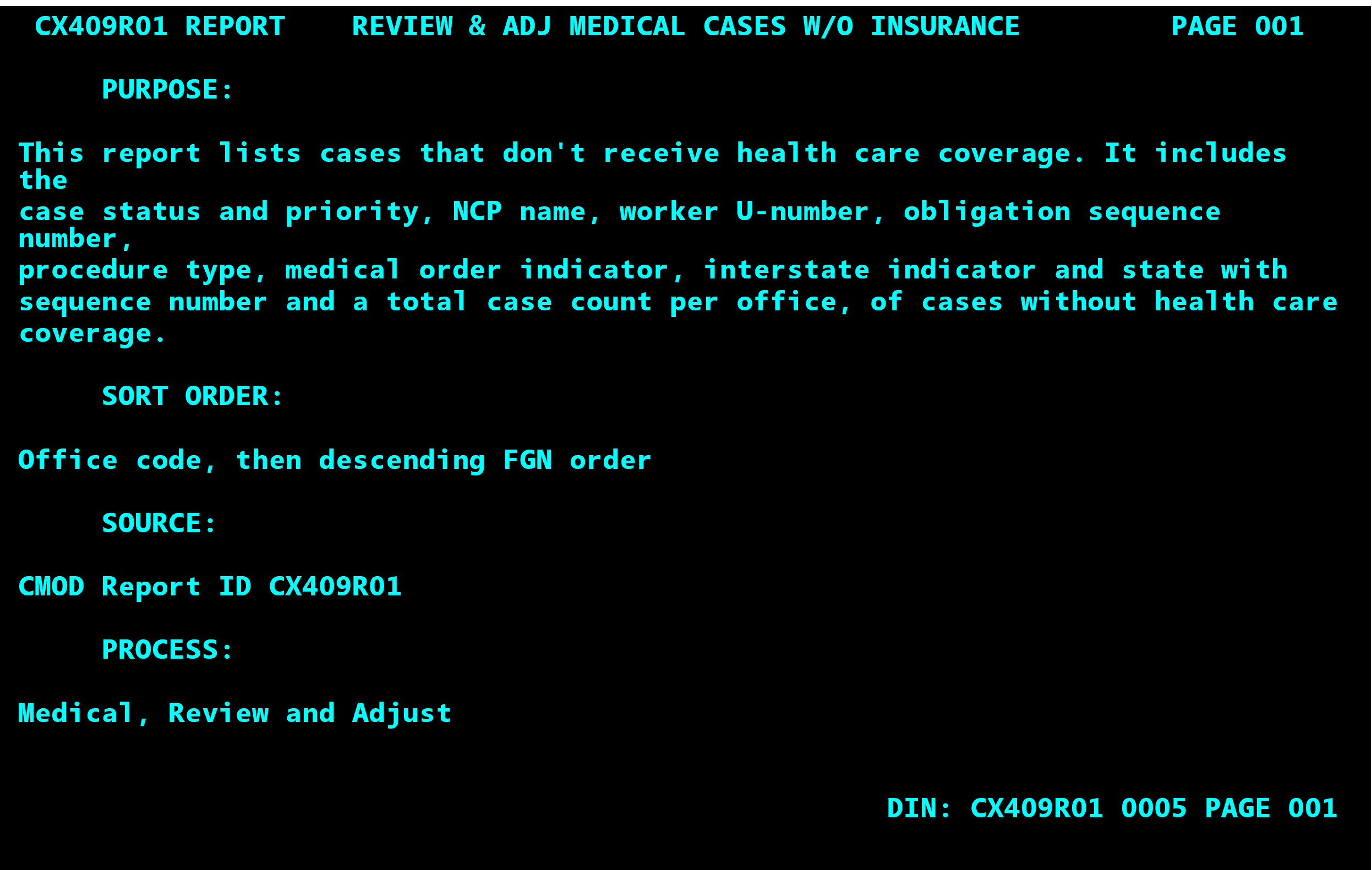
About T-user
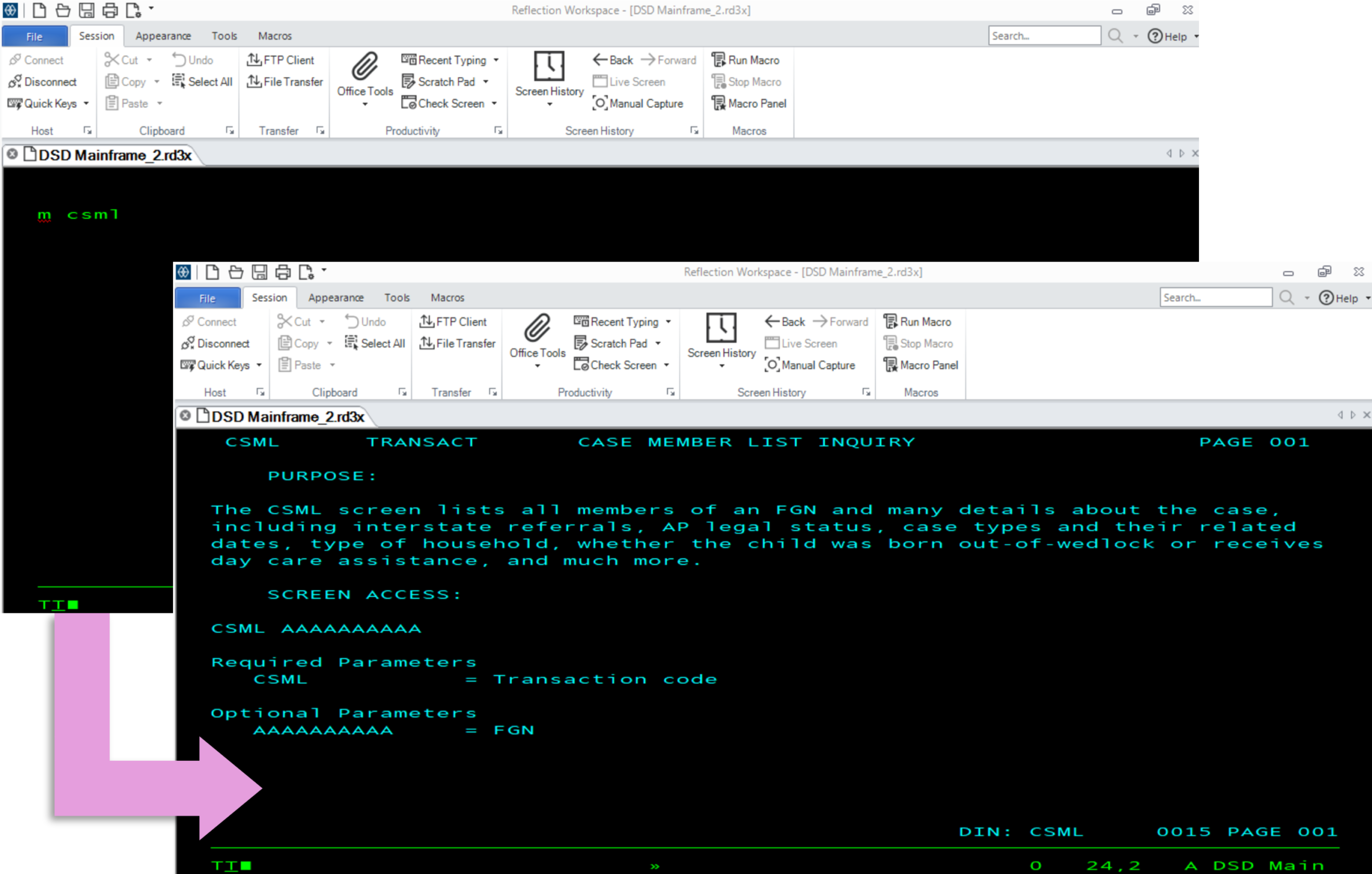
Use T-user on any OSIS screen to find general screen information and descriptions of screen data elements.
Access T-user three different ways:
- M_(TRANID)
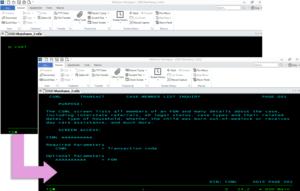
- M_(TRANID)data
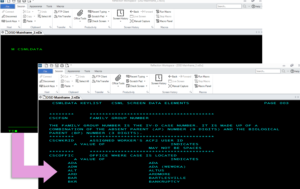
- Menu_(TRANID)data
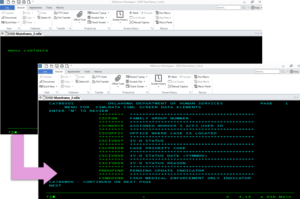
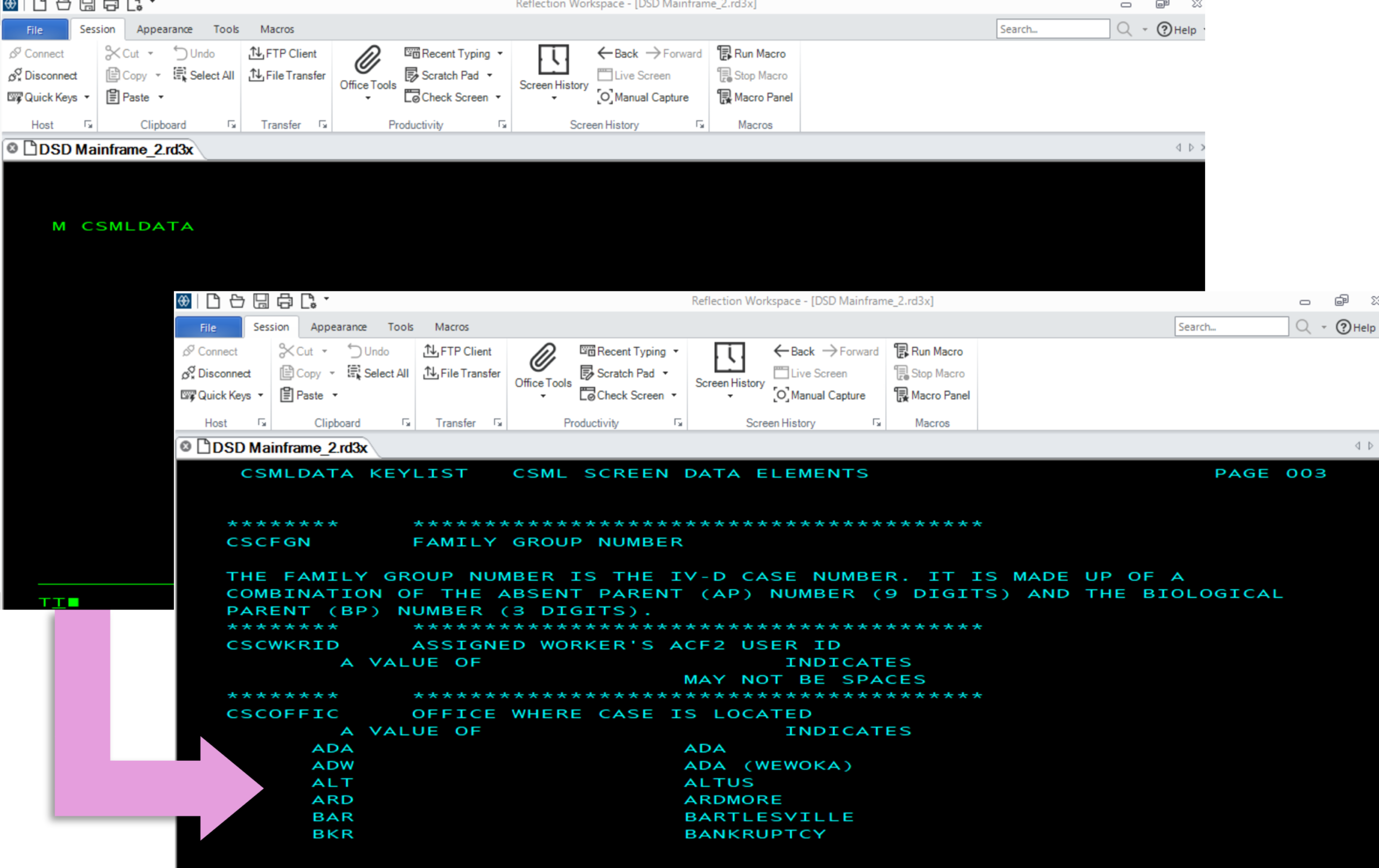
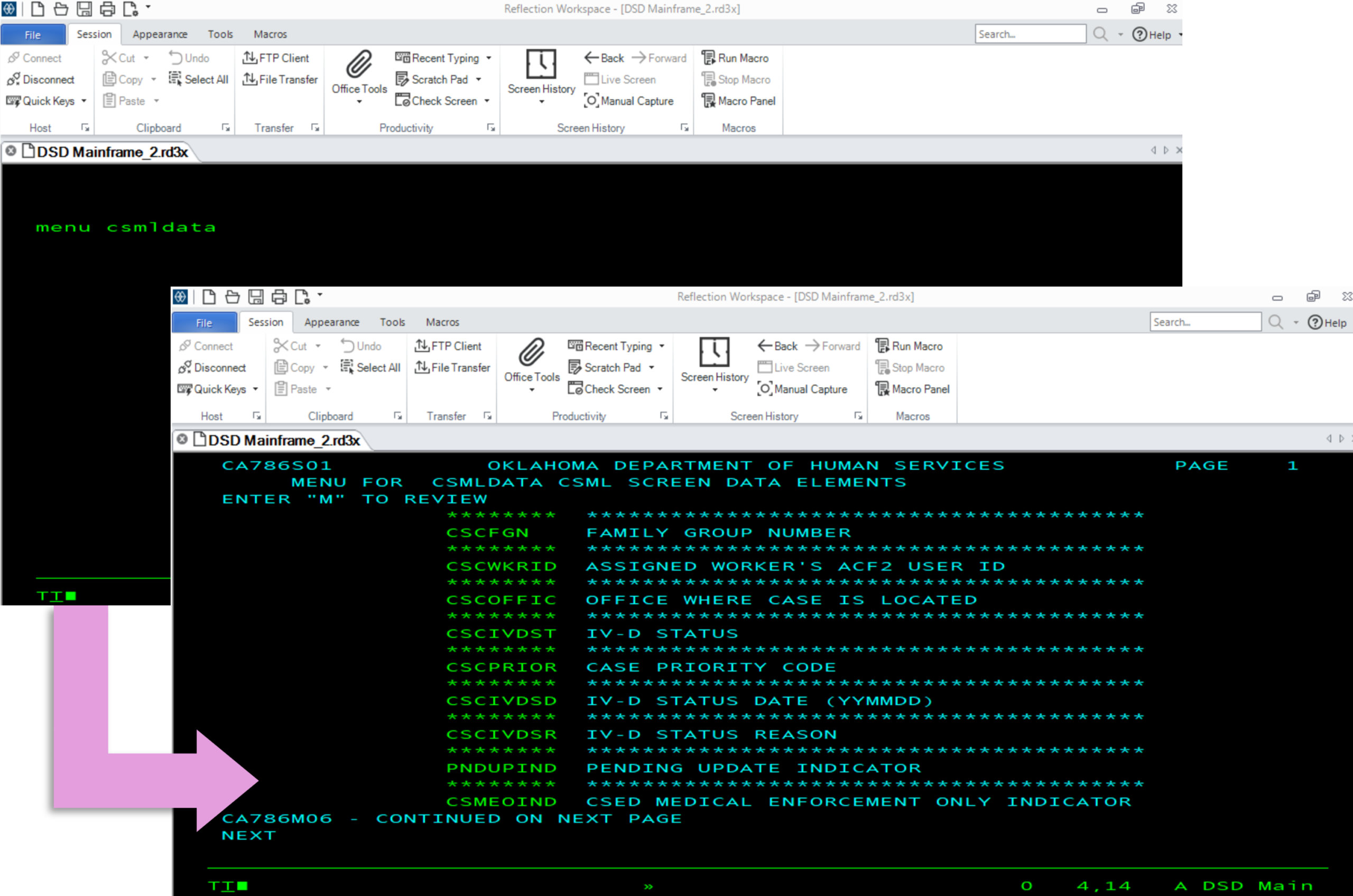
(the underscore indicates a space is entered in between)