Shared mailboxes allow a group of people to monitor and send email from a public email alias, like group@company.com. Shared mailboxes can be used as a shared team calendar, and are also used as a “noreply” email account.
First, the owner of the shared mailbox must send a special request to the ocss.itsecurity@okdhs.org to request a group of people be given “read only delegate access” to the mailbox. Once that has been granted, the group members can follow the steps below to add the shared mailbox into outlook.
After you’ve been added as a member of a shared mailbox, close Outlook and then restart it. The shared mailbox should automatically display in your Folder pane.
If not,
- Select Mail from the navigation pane in new Outlook.
- In the Folder pane, right-click your account name, then select Add shared folder or mailbox.
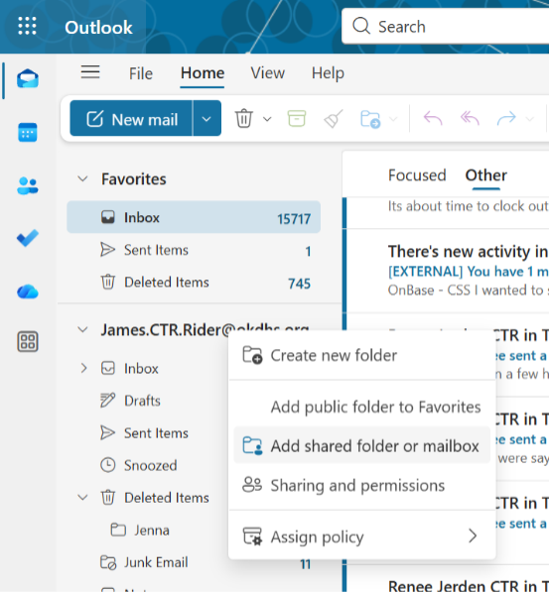
- In the Add shared folder or mailbox window, type the name of the mailbox you want to access, like group@company.com.
Note: while you may be able to add the shared mailbox at any time, you cannot start using it until IT Admin adds you as a member.
Most of us use ‘new Outlook’ at work. You can tell which version you’re using by the icon: